AI Services Installation
Now that I have an Elastic Application Runtime foundation available and ready, I want to try the AI Services tile. As per the official documentation, AI Services will enable the use of LLMs (Large Language Models) in the applications. In case you’ve been hiding under a rock in the past couple of years, LLM is a type of artificial intelligence trained on enormous amounts of text (books, websites, articles, conversatons, code and more) to understand and generate human-like language. Let’s get into it!
To get started, I downloaded two artifacts from the Broadcom Download page:
- VMware Tanzu for Postgres on Tanzu Platform 10.4.1 (postgres-10.4.1.pivotal)
- AI Services for VMware Tanzu Platform 10.4.1 (genai-10.4.1.pivotal)
Postgres tile installation
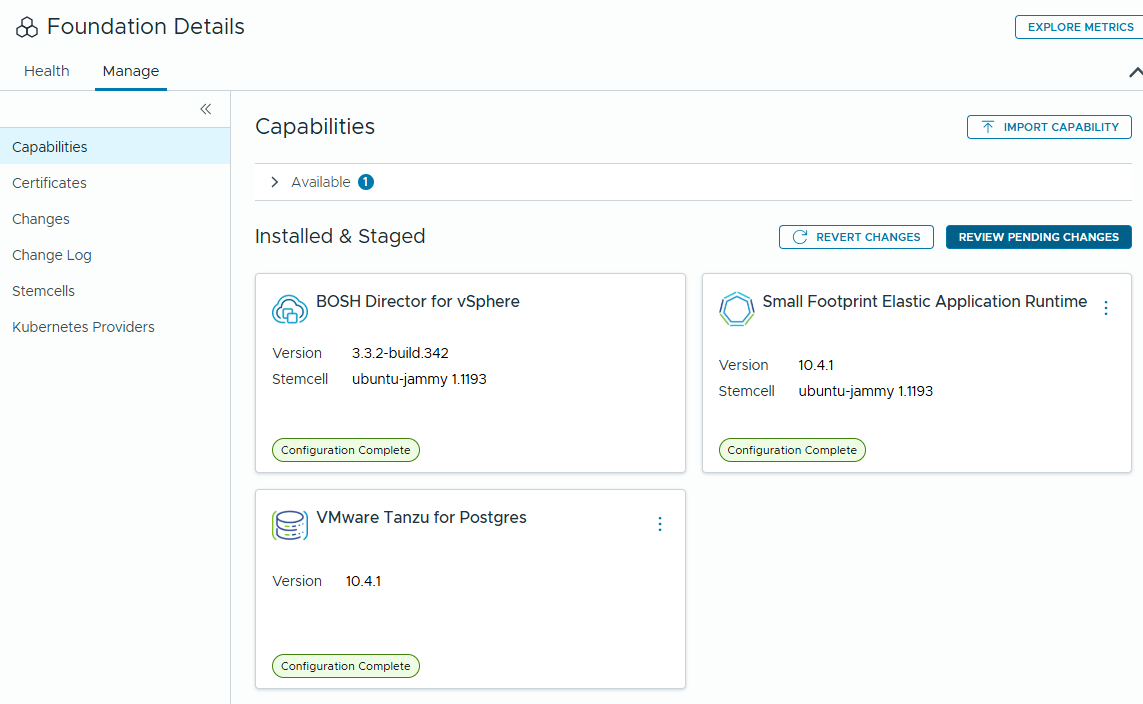
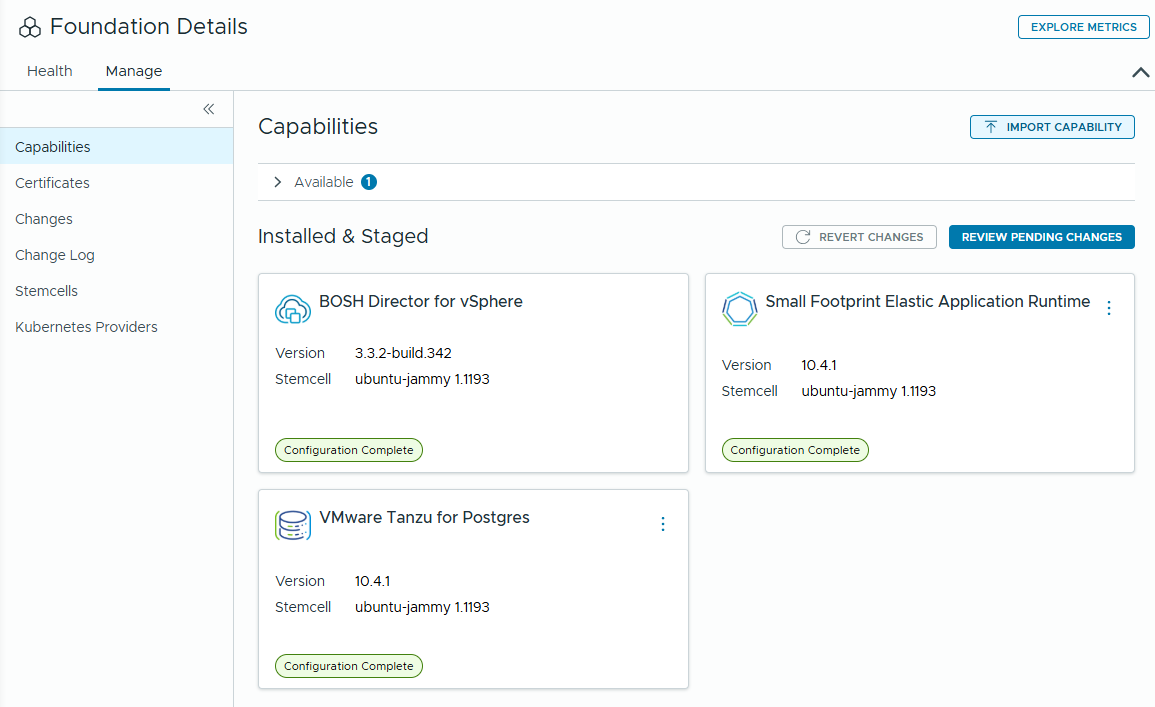
In the Foundation Core, I navigated to Manage->Capabilities and clicked “Import Capability”. I selected the “postgres-10.4.1.pivotal” file, and waited until it was showing in the “Available” section.
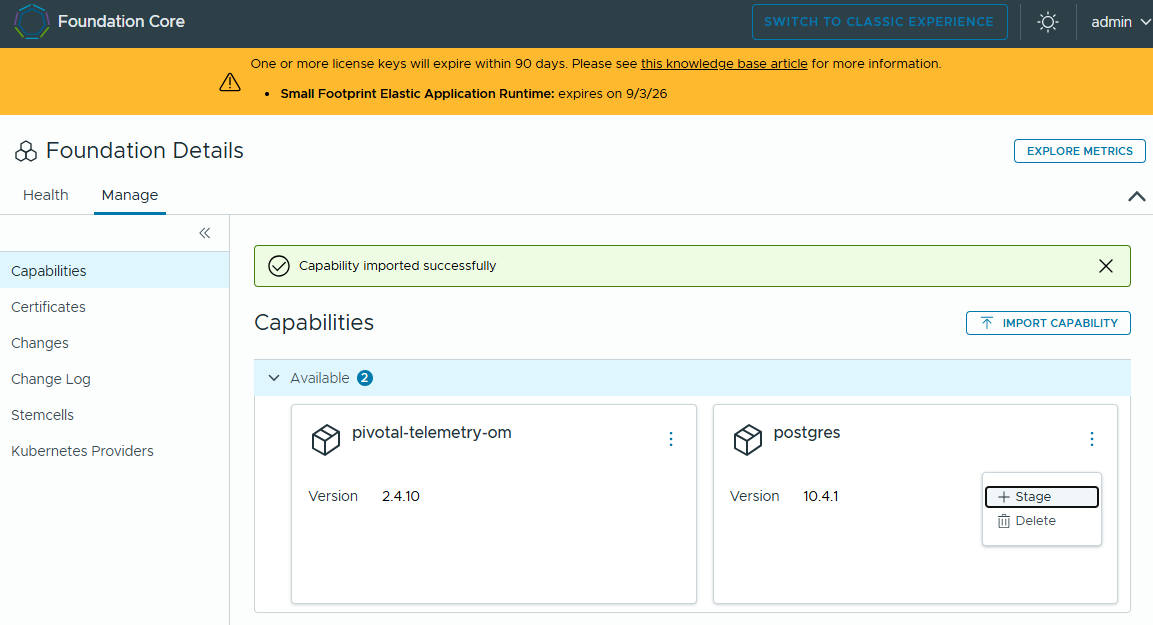
Clicked on the context menu, and then clicked “Stage”.
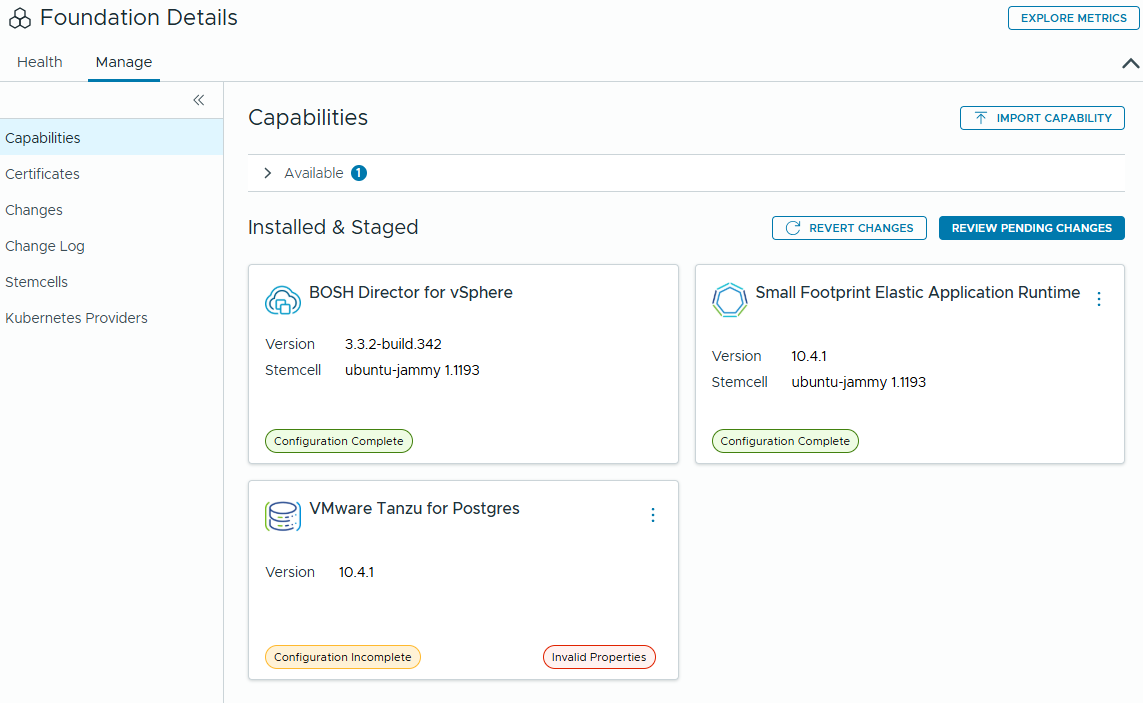
Clicked on the tile and that took me to the settings page.
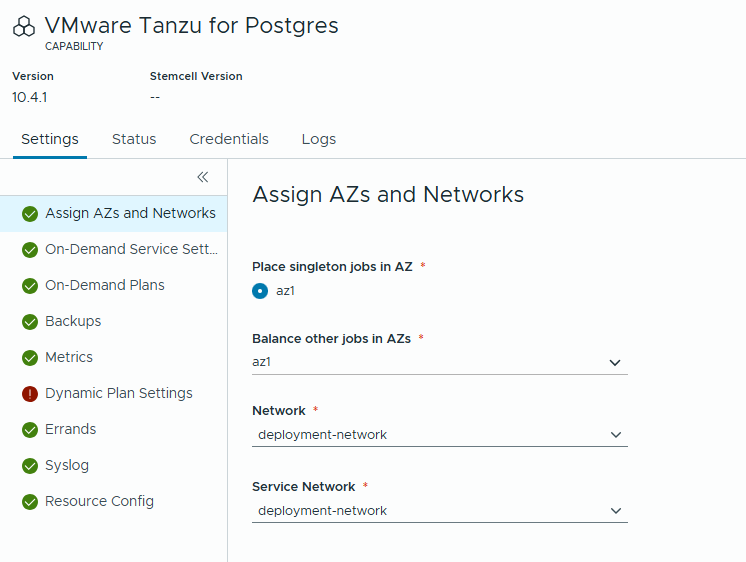
In the “Assign AZs and Networks” tab, I configured the jobs to use the “az1” AZ. The Network and Service Network were both set to “deployment-network”. I only have one AZ and one network, so there’s not much to decide here.
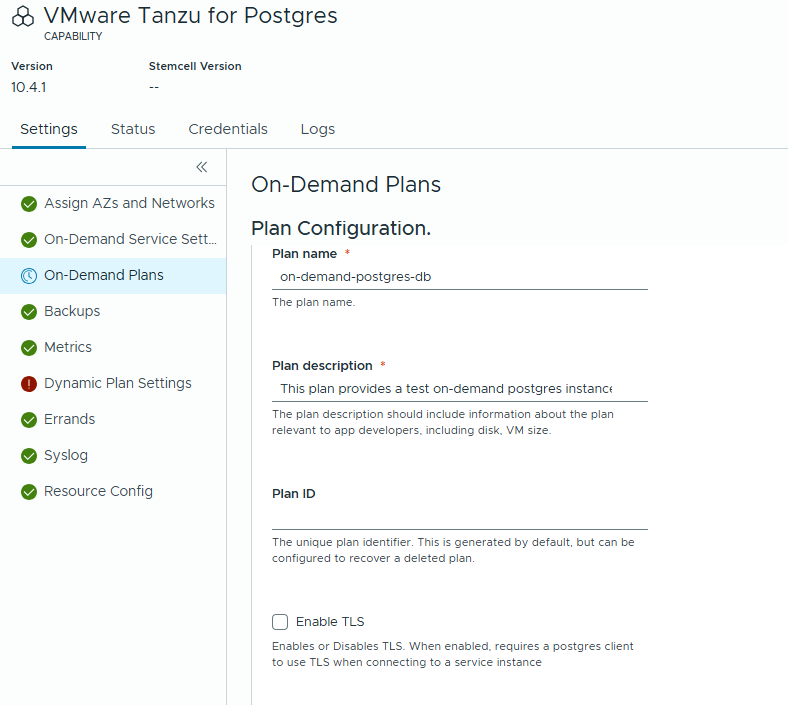
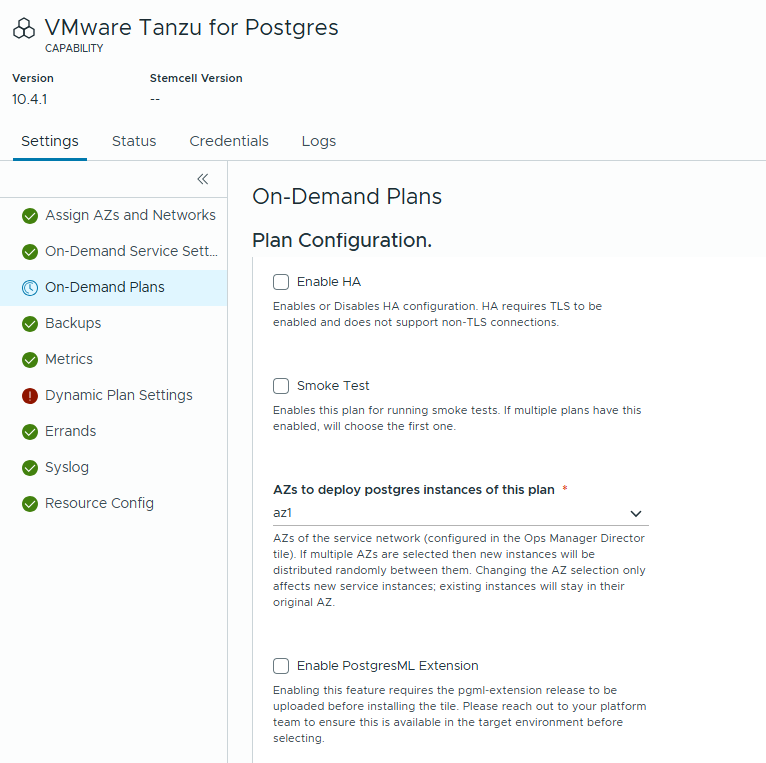
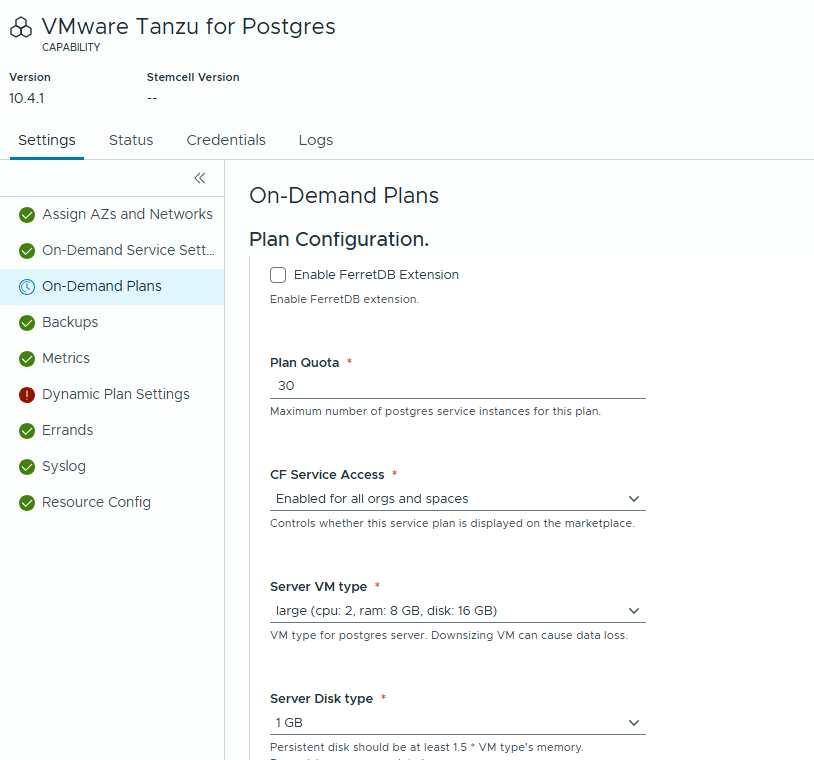
In the “On-Demand Plans” tab, I added a plan named “on-demand-postgres-db”. I set the “AZs to deploy…” to “az1”. Made sure that the “Server VM type” is “large”. All other settings in the plan were left as is.
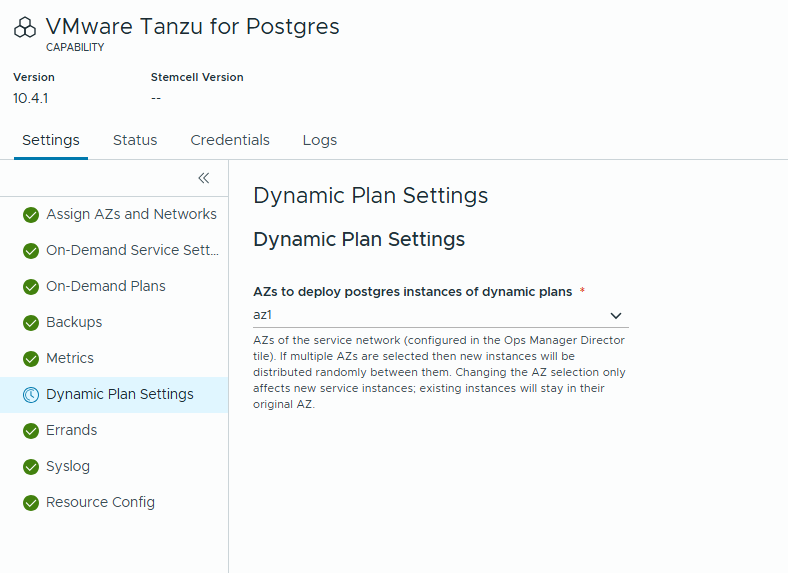
In the “Dynamic Plan Settings” tab, I set the “AZs to deploy postgres …” to “az1”.
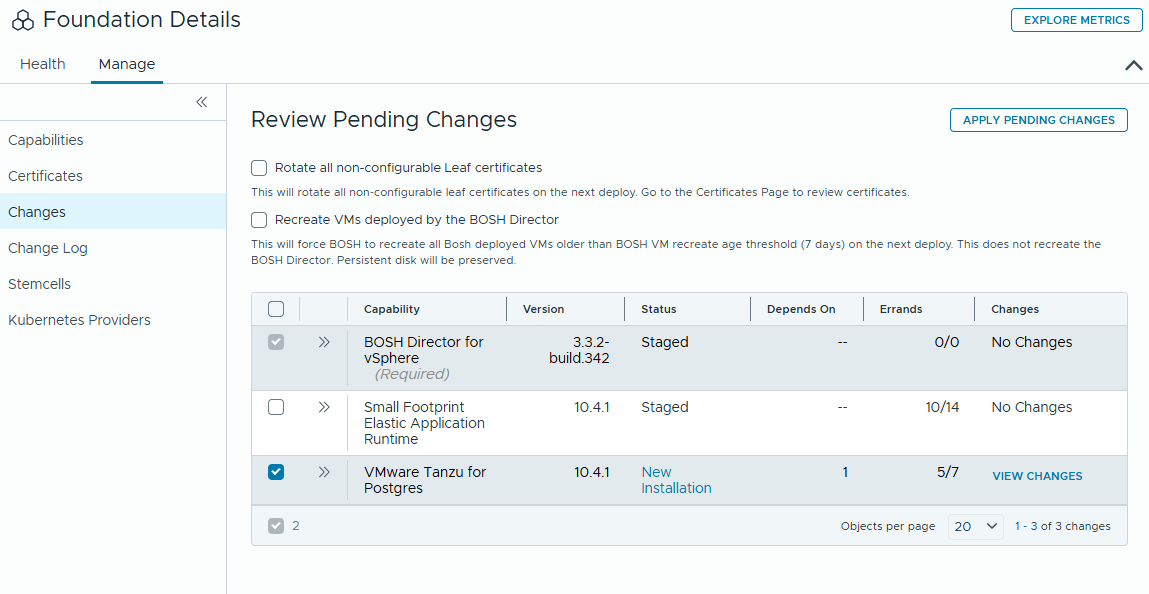
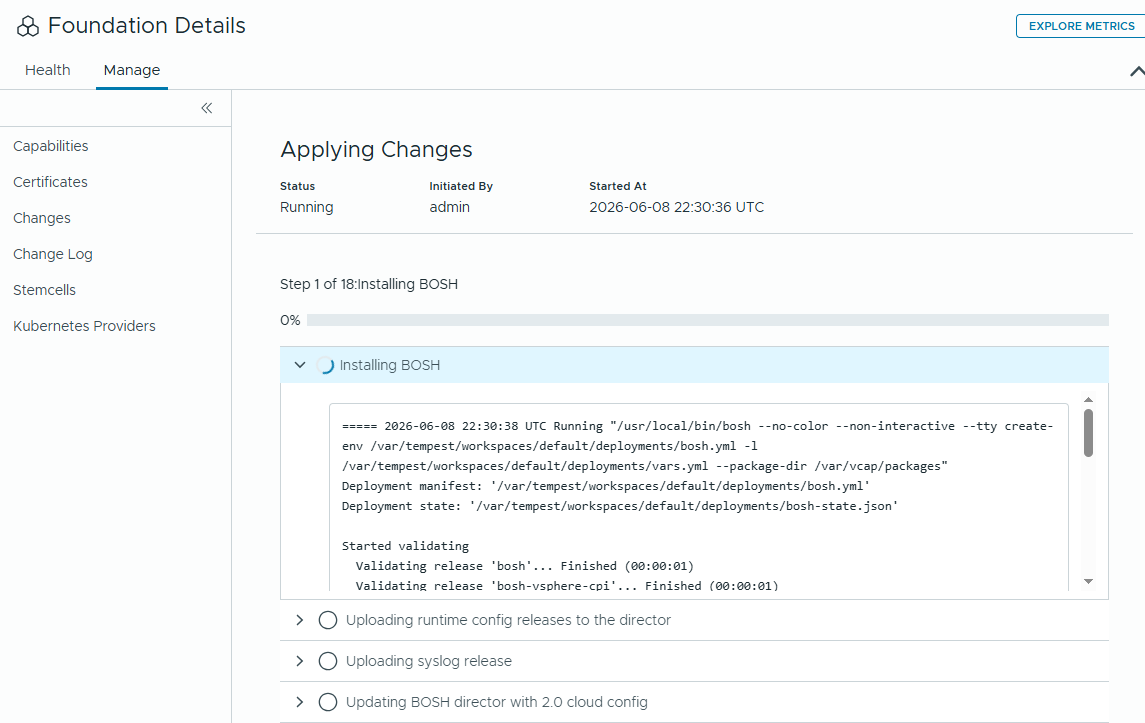
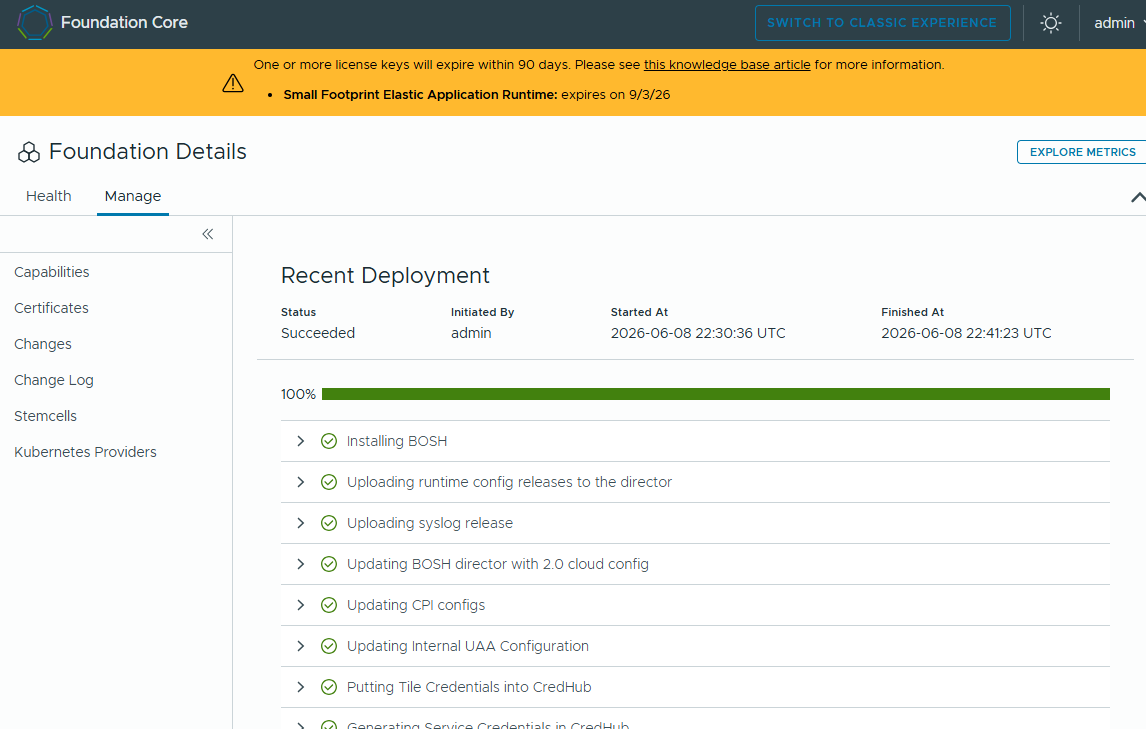
Navigated to Manage->Capabilities->Review Pending Changes. Then, click “Apply Pending Changes”. Monitored the AC (Apply Changes) until it completed successfully!
Now let’s install the AI Services tile.
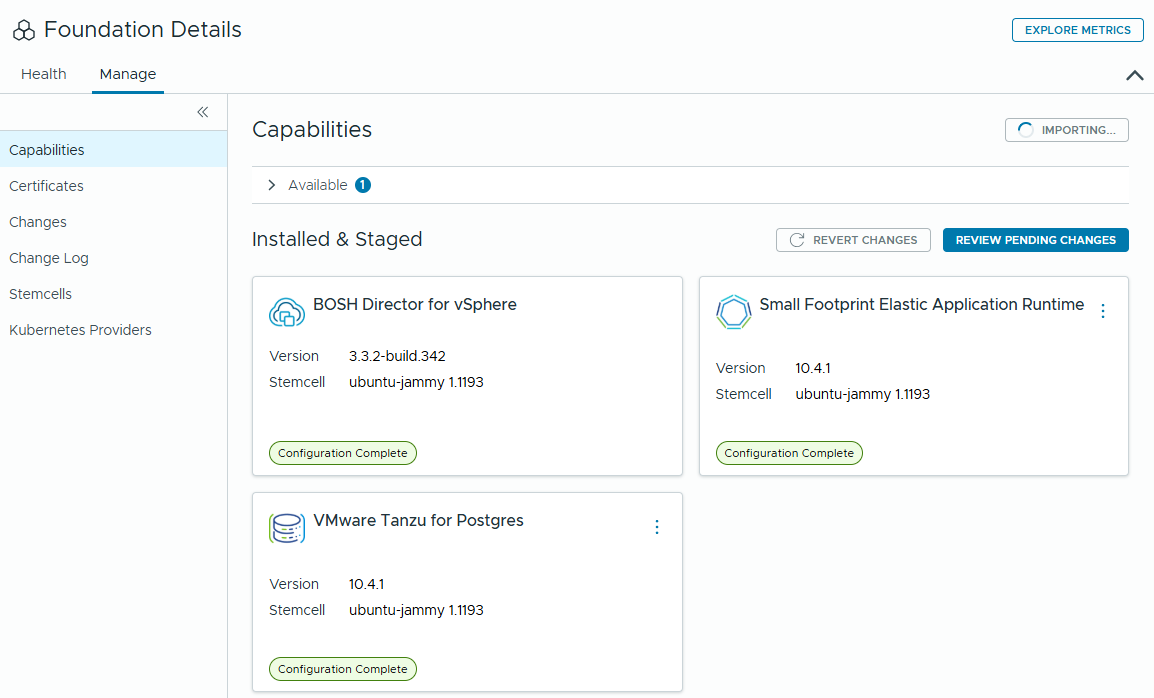
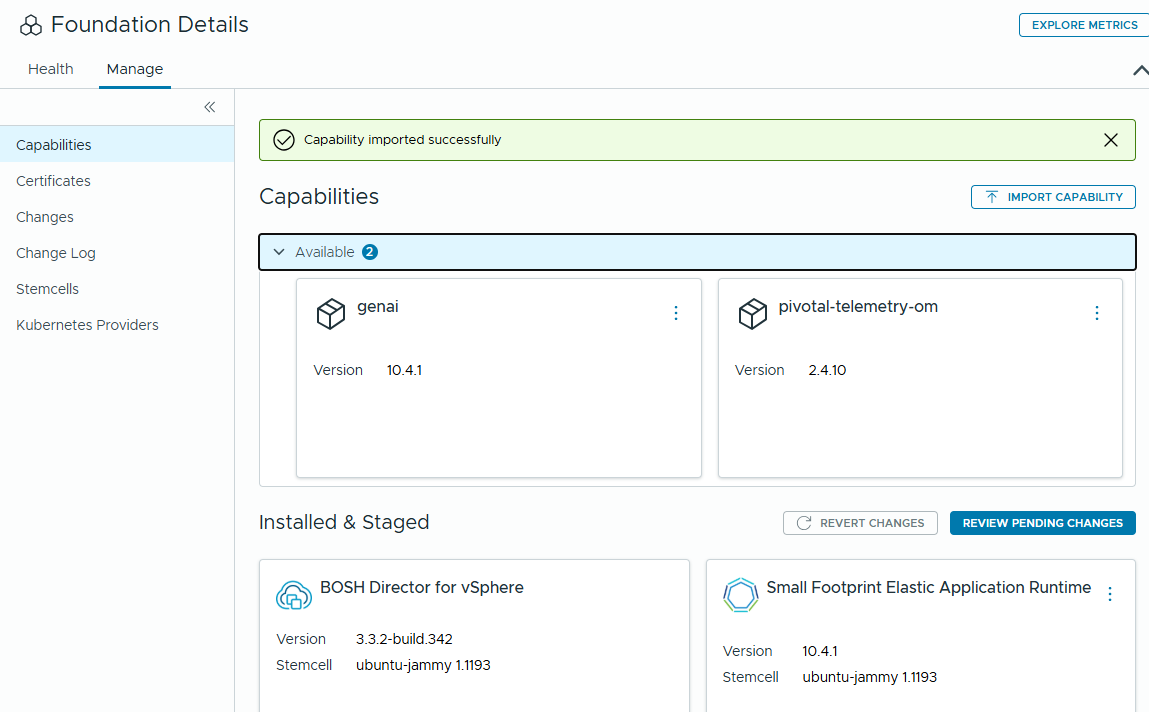
Same deal as before when installing a tile! Clicked “Import Capability”. Selected the AI Services tile file. Waited for the Importing to complete. Staged the tile.
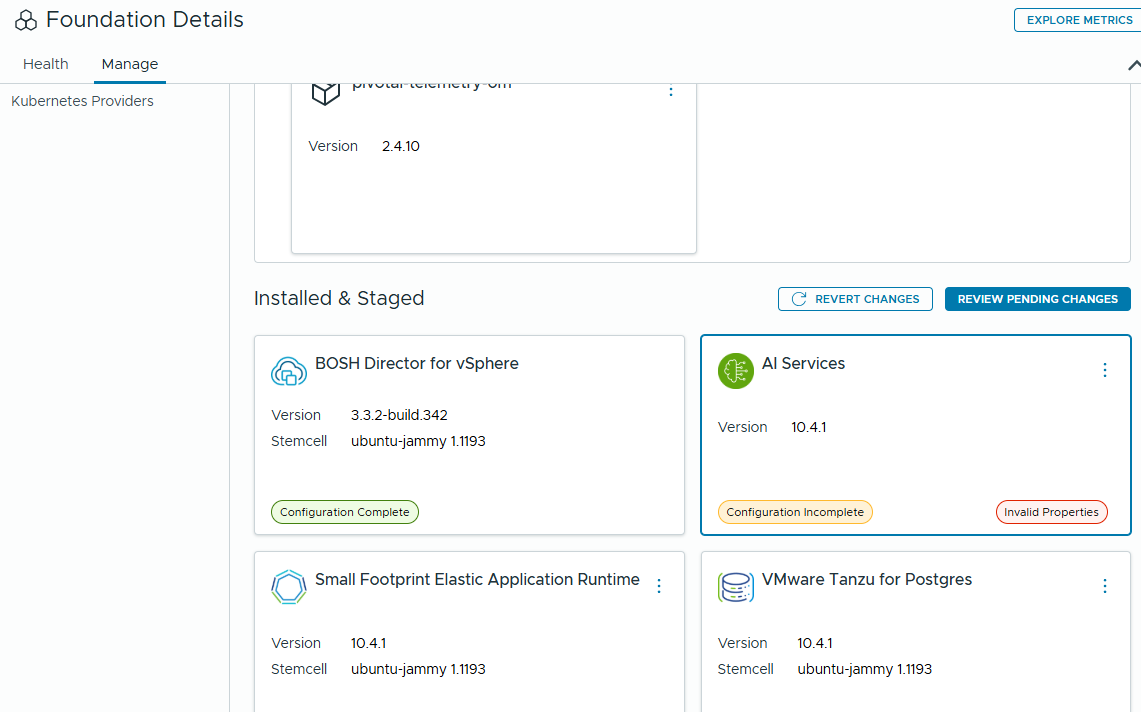
Clicked the AI Services tile, to start the configuration.
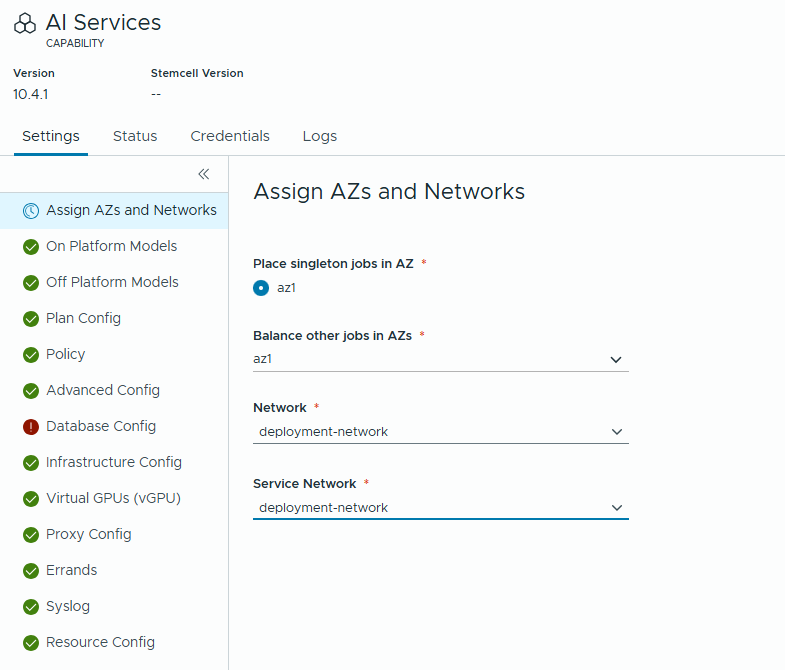
In the “Assign AZs and Networks”, configured the jobs to use “az1” as the AZ, and the “deployment-network” as the “Network” and “Service Network”.
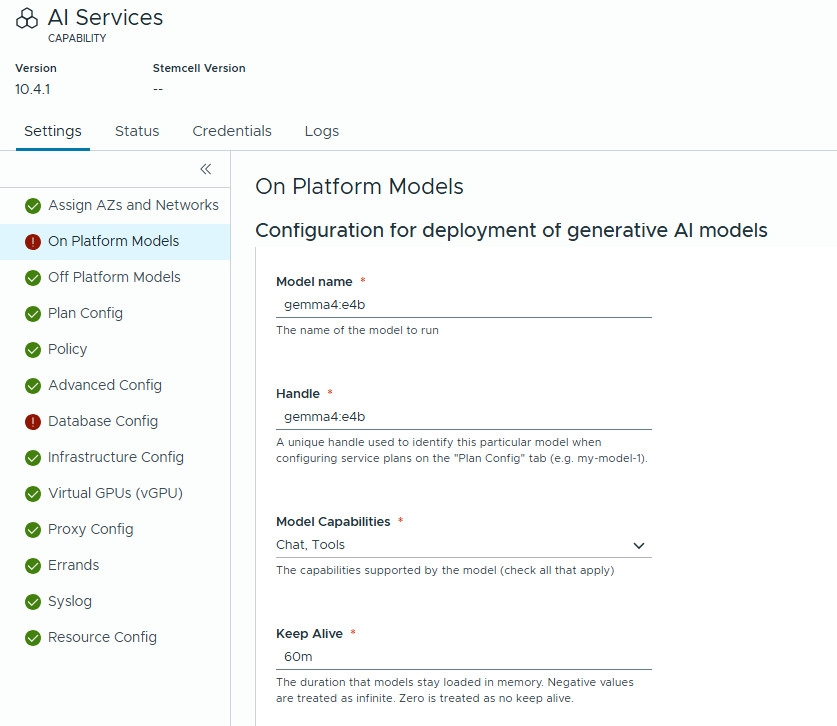
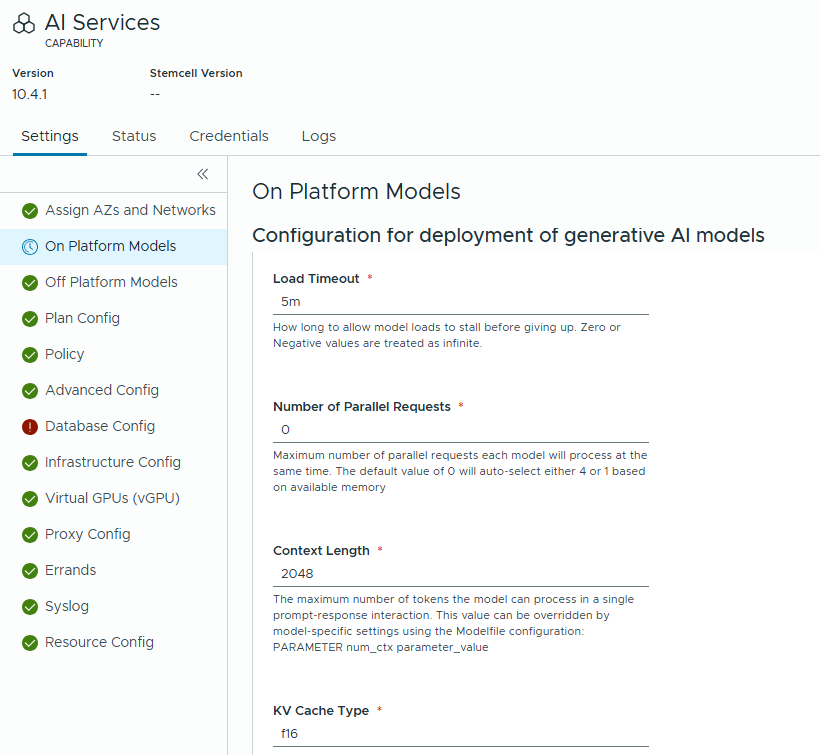
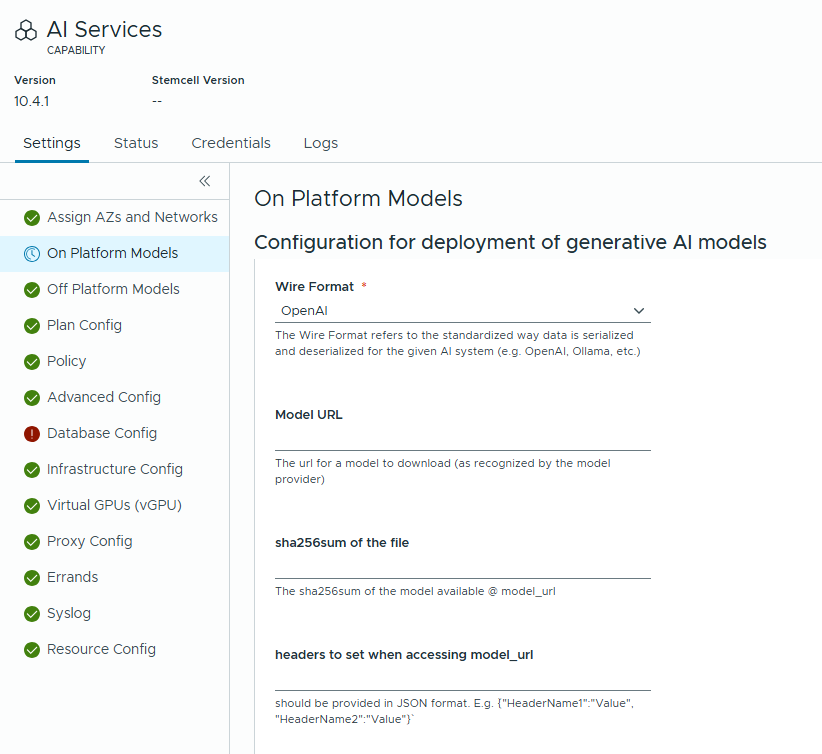
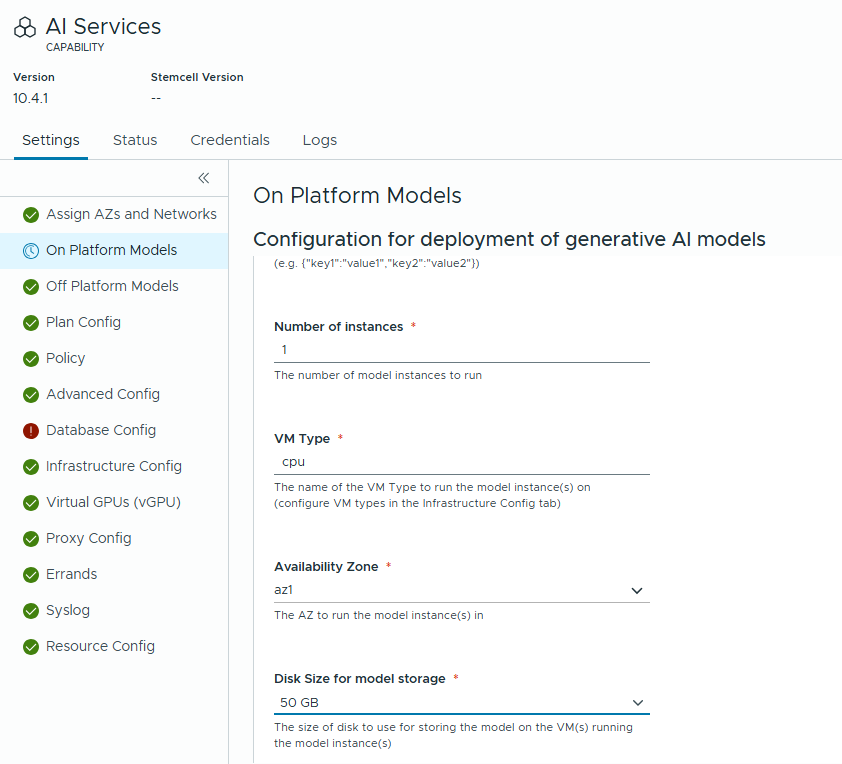
In the “On Platform Models” tab, I added an Ollama Model, gemma4. Set Model name as “gemma4:e4b”. The Handle was set as “gemma4:e4b”. The Model Capabilities were set to “Chat, Tools”. Set “VM Type” to “cpu”. Set AZ to “az1”. Set Disk Size to 50GB. All the other settings were left as they were.
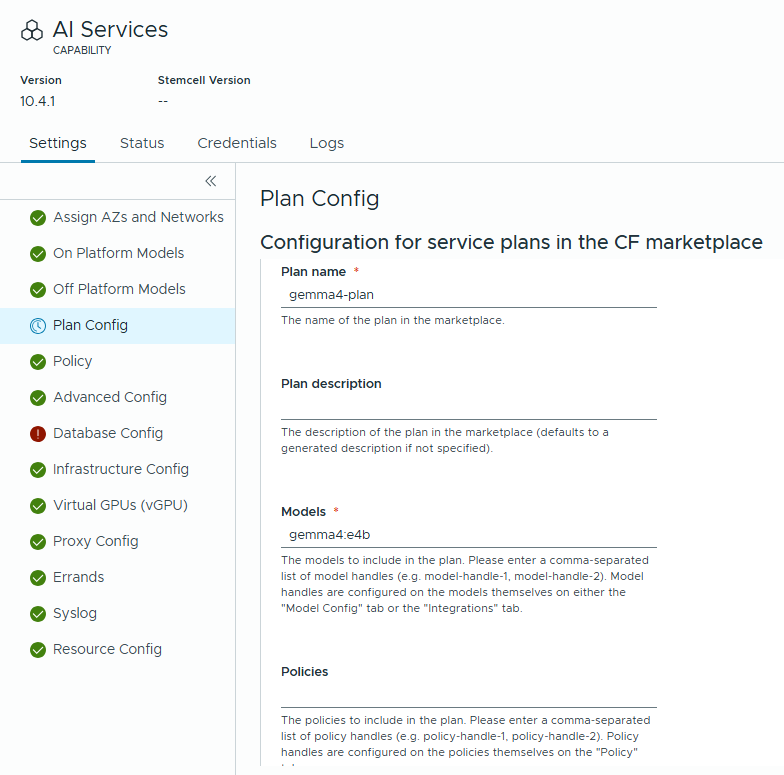
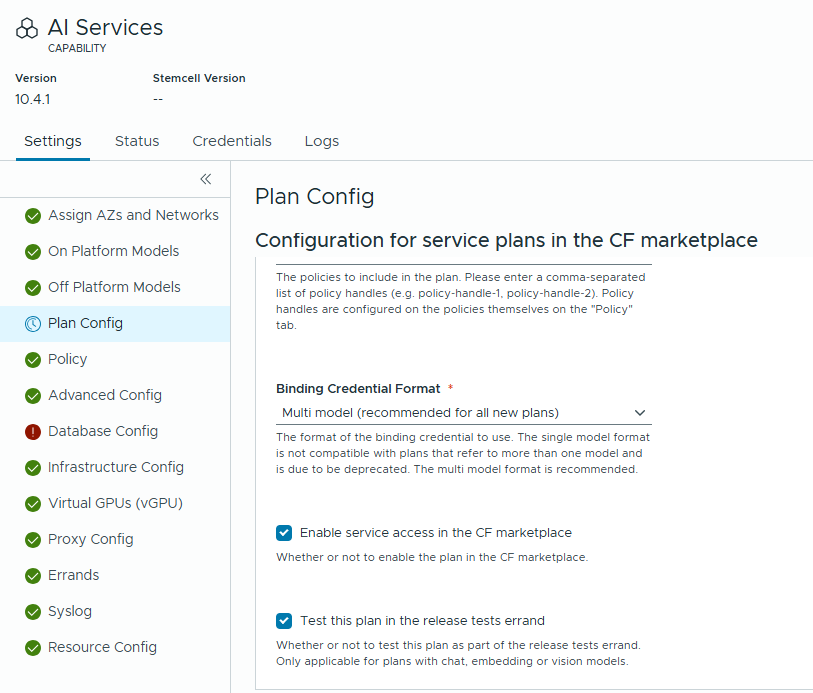
Next, let’s configure a plan. In the “Plan Config”, I added a plan named “gemma4-plan”. I set Models to “gemma4:e4b”. Left other settings as they were.
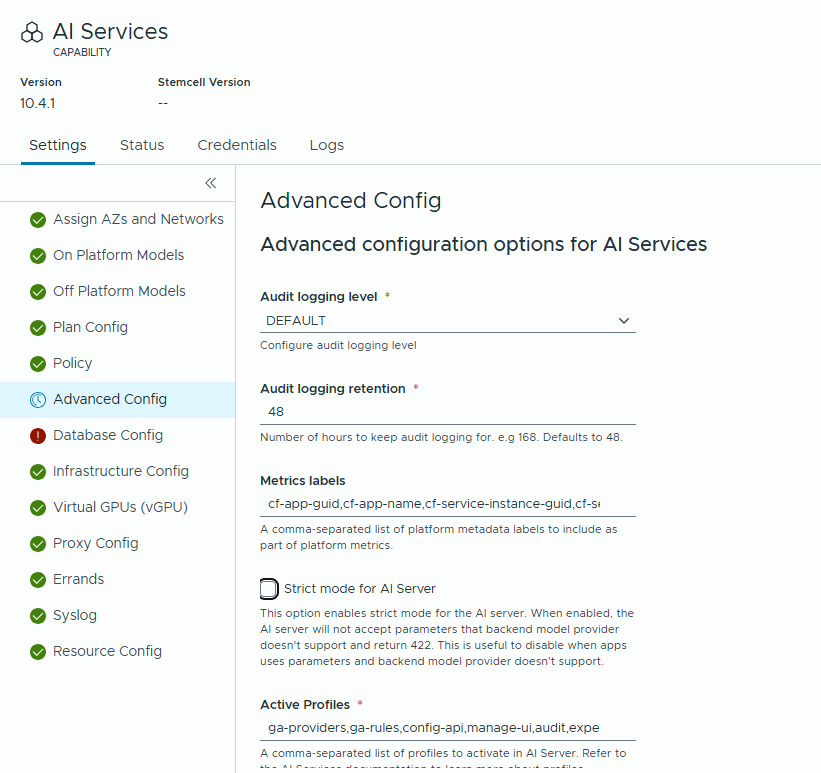
In the “Advanced Config” tab, I unchecked the “Strict mode for AI Server” checkbox. That’s the only thing I changed there.
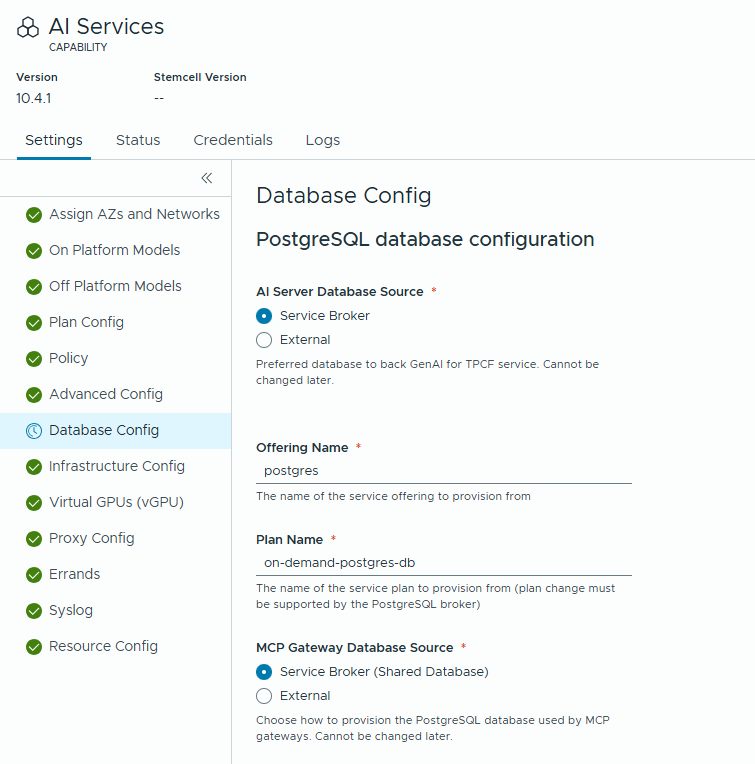
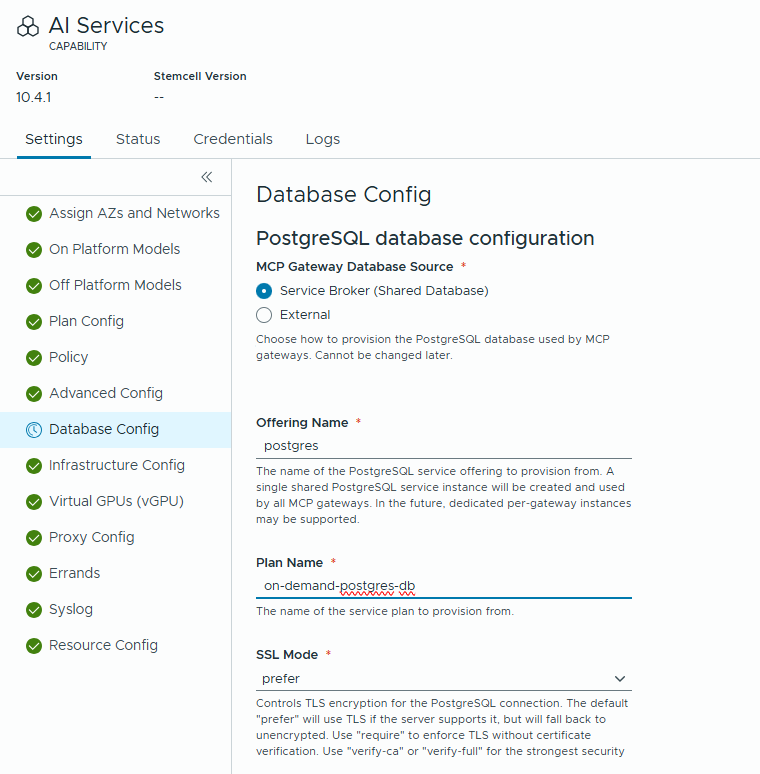
In the “Database Config” tab, for the “AI Server Database Source”, I kept it as “Service Broker”, set the Offering Name to “postgres”, and the Plan Name to “on-demand-postgres-db”. I did the same thing for the “MCP Gateway Database Source”.
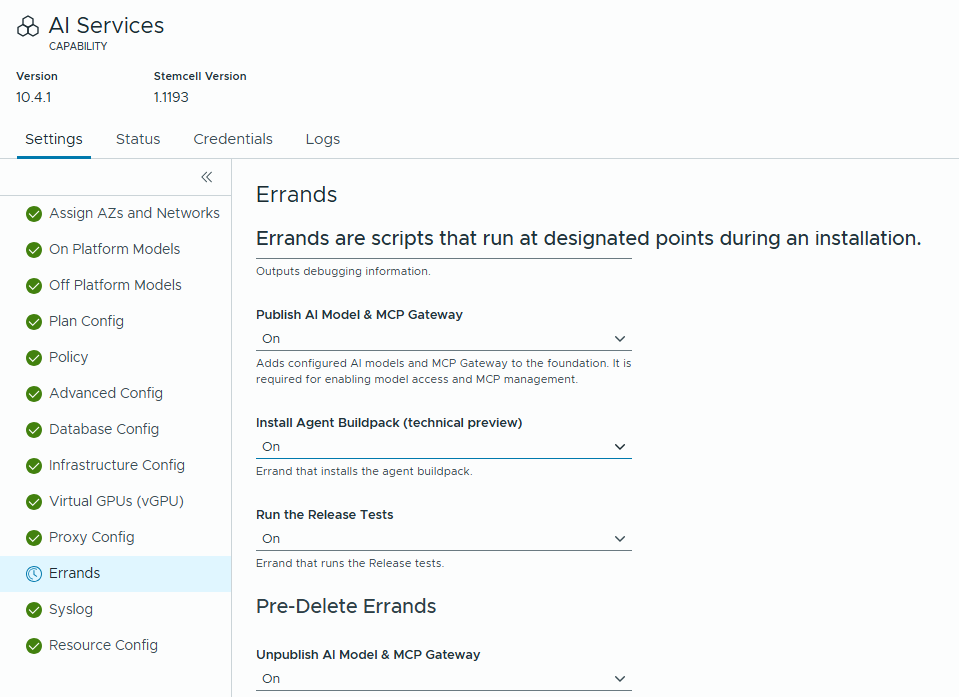
In the “Errands” tab, I only switched the setting for “Install Agent Buildpack” to on.
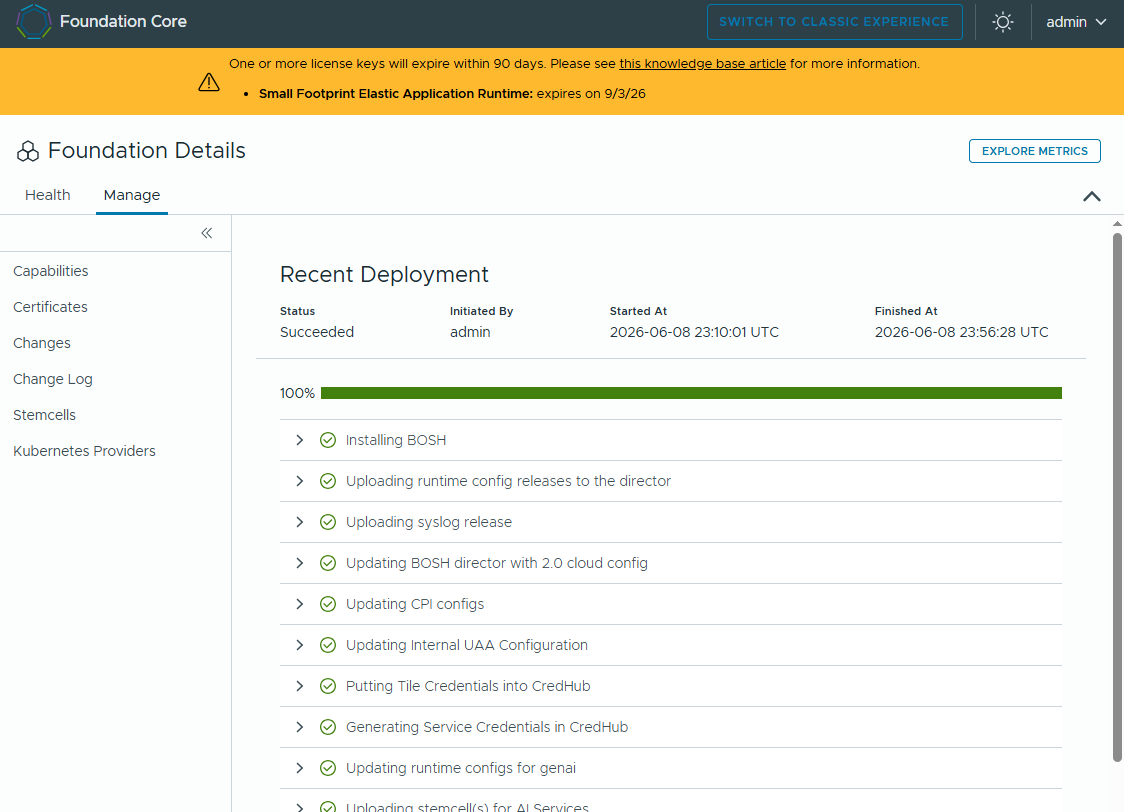
The other settings in the other tabs were left as they were (default settings). At this point, the AI Services tile has been fully configured. Apply Changes has been started.
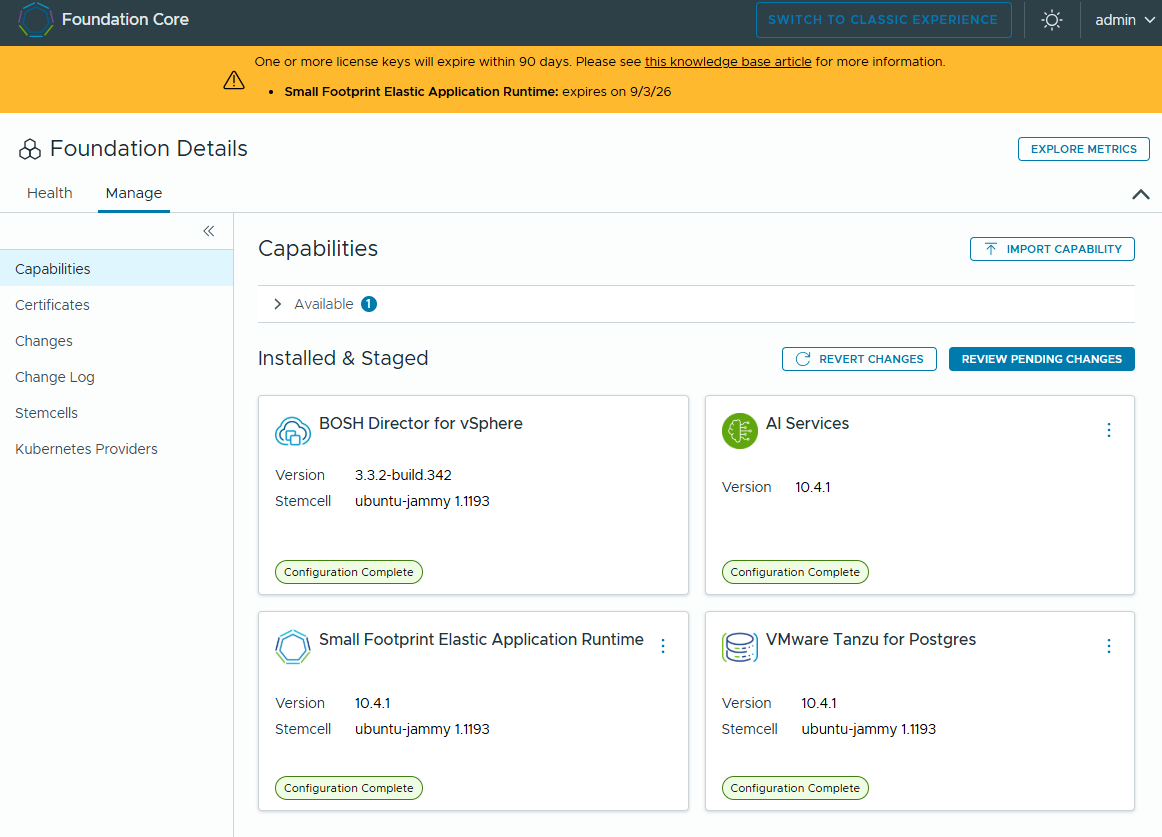
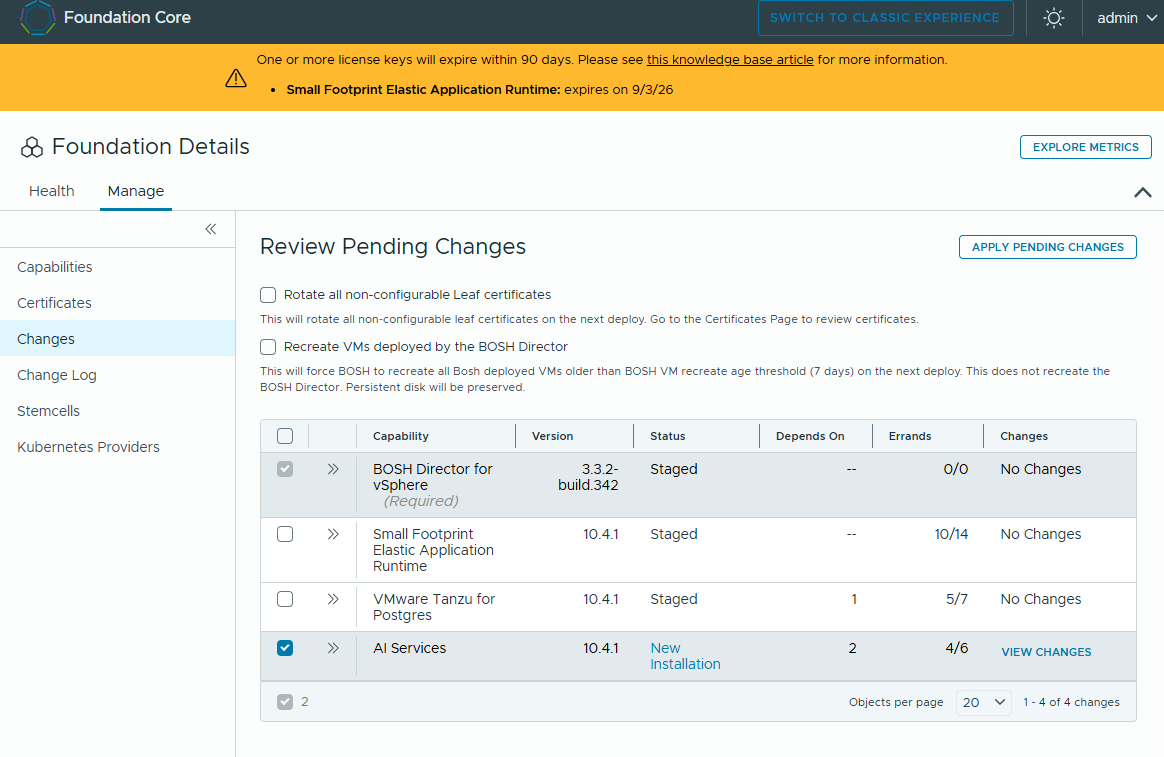
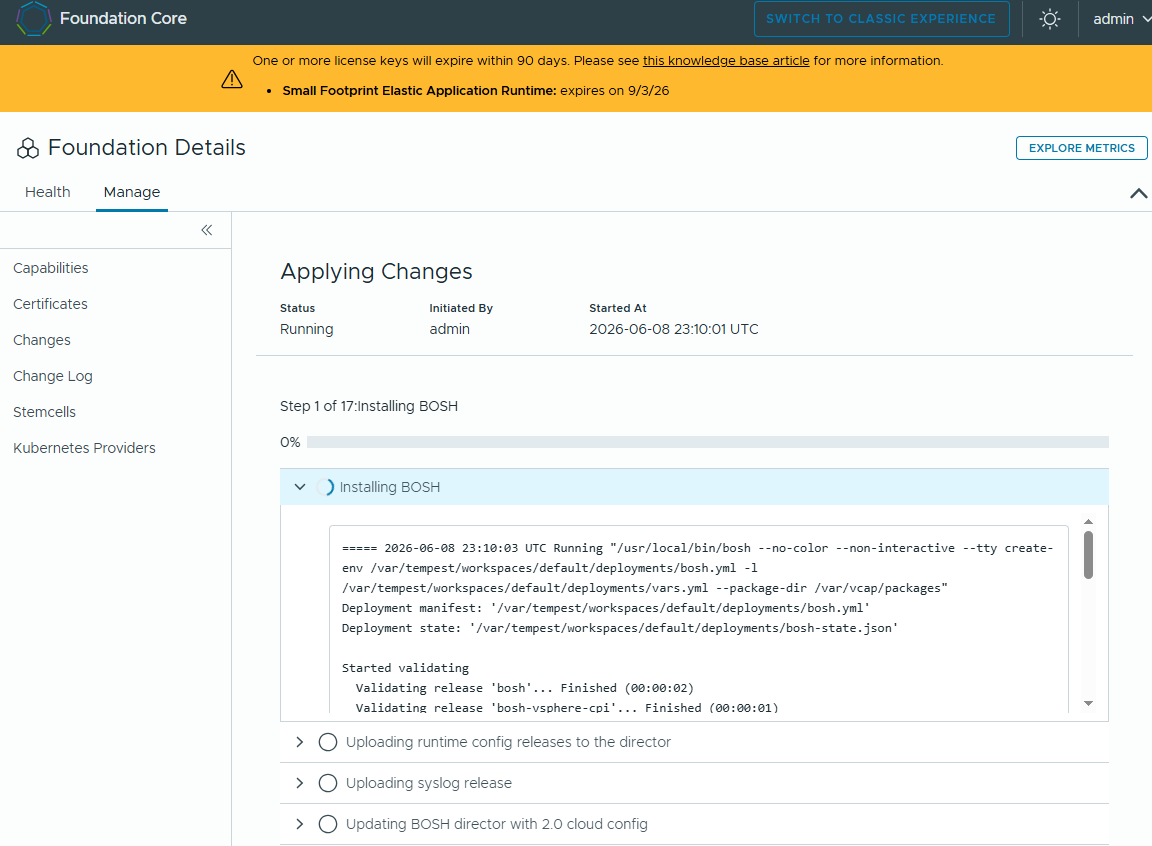
After a little more than 45 minutes, the AC completed successfully. All errands were successful so that’s a great thing.