Foundation Core upgrade from Ops Manager
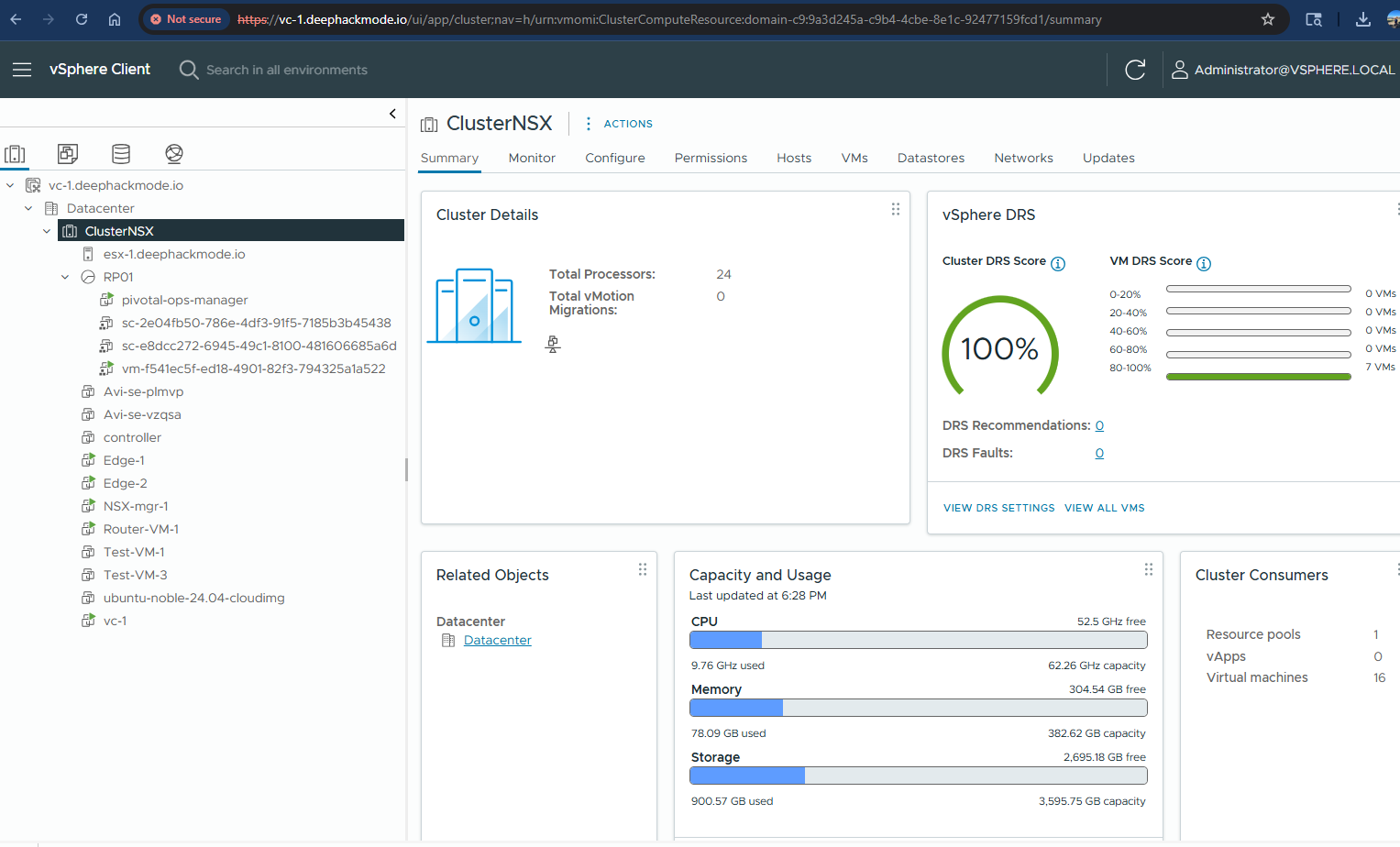
I have uninstalled a few products in my homelab. I basically left the NSX system, router VM and Ops Manager running. My vCenter look like this:
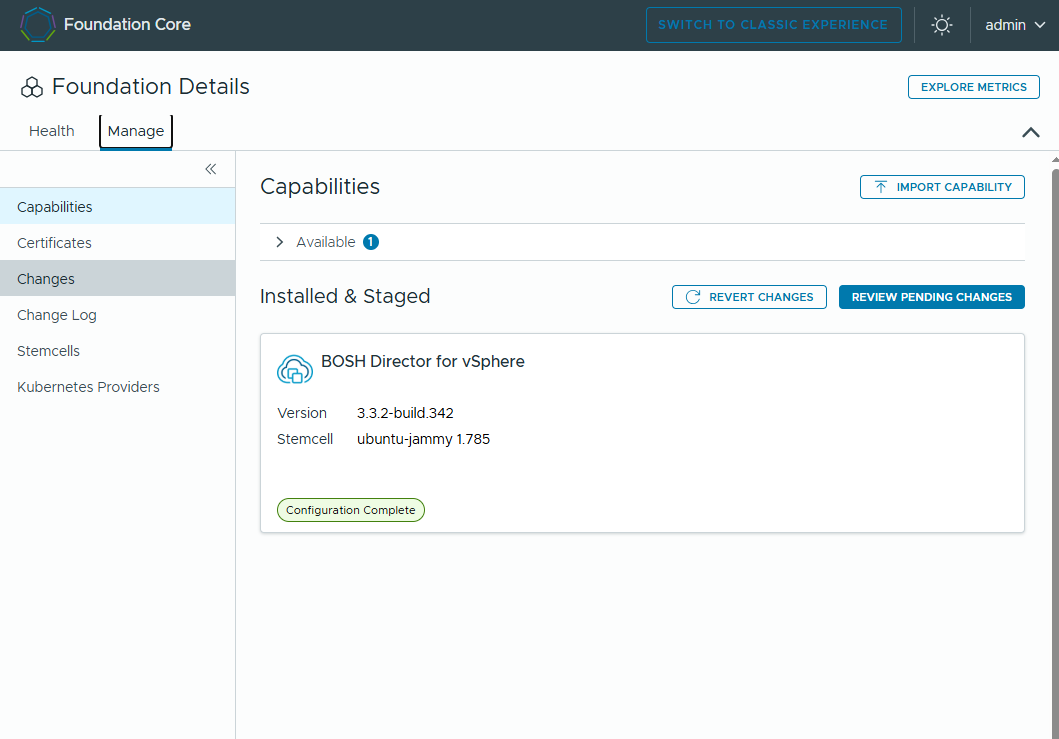
The Ops Manager only has the Bosh Director tile.
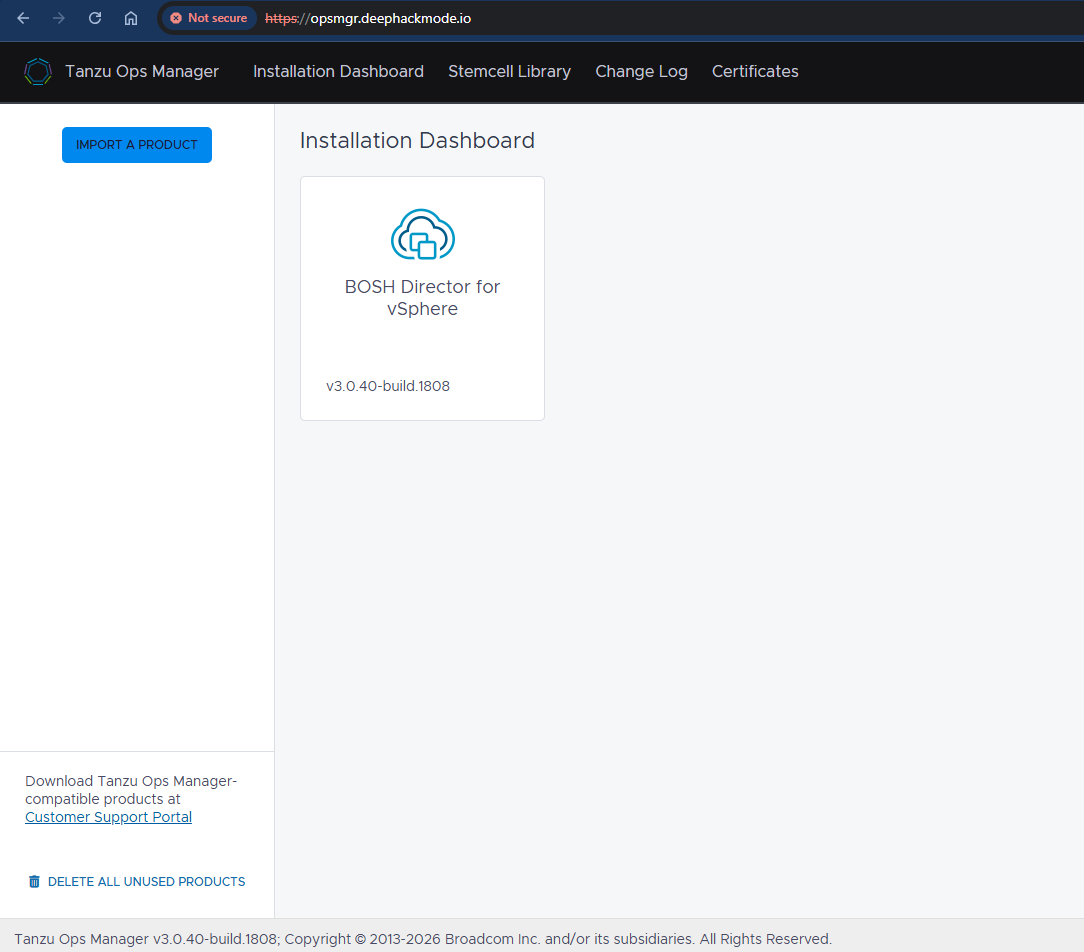
Clean slate! My plan was to install the Elastic Application Runtime tile. Before doing that, I upgraded the Ops Manager to the latest version 3.3.2.
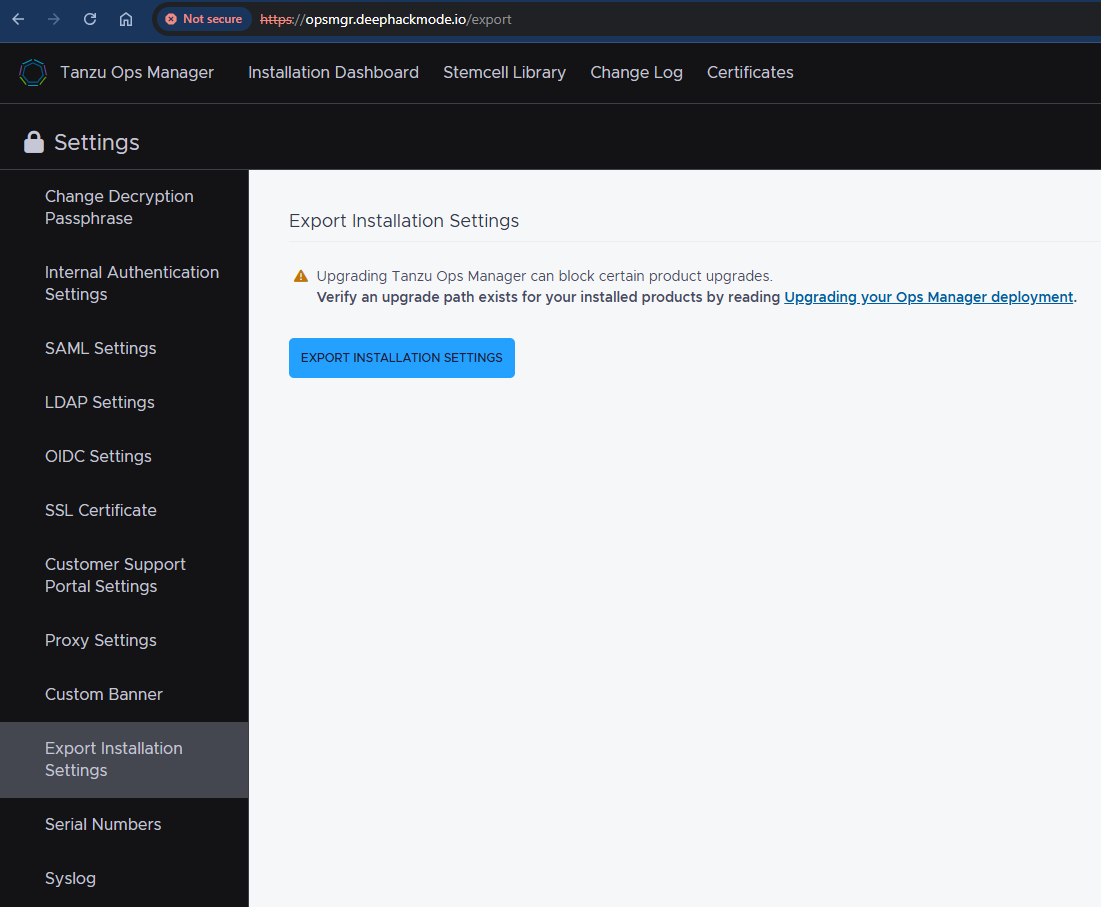
To upgrade the Ops Manager, I exported the installation settings first and saved the file in my local. This file contains all the information of the current Ops Manager installation, and will be imported into the new one later.
I downloaded the newest Ops Manager OVA (v3.3.2) from the Broadcom Download site.
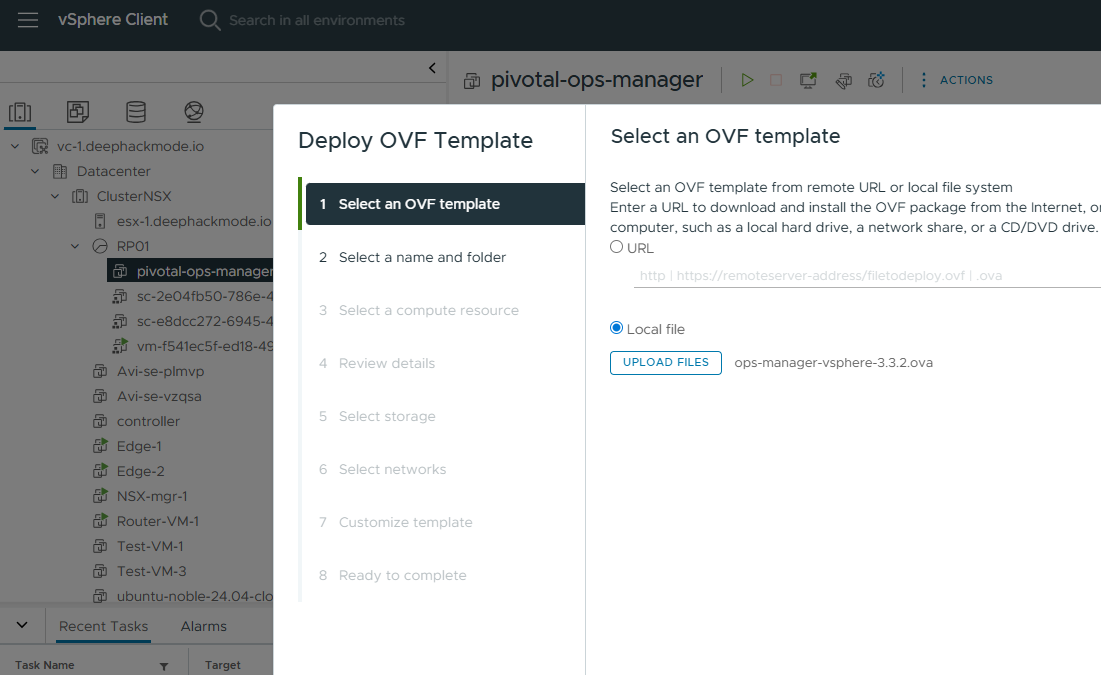
In vCenter, I powered off the current Ops Manager VM. I then right-clicked on my only resource pool item (RP01), and then selected “Deploy OVF Template”. I upload the OVA that I just downloaded:
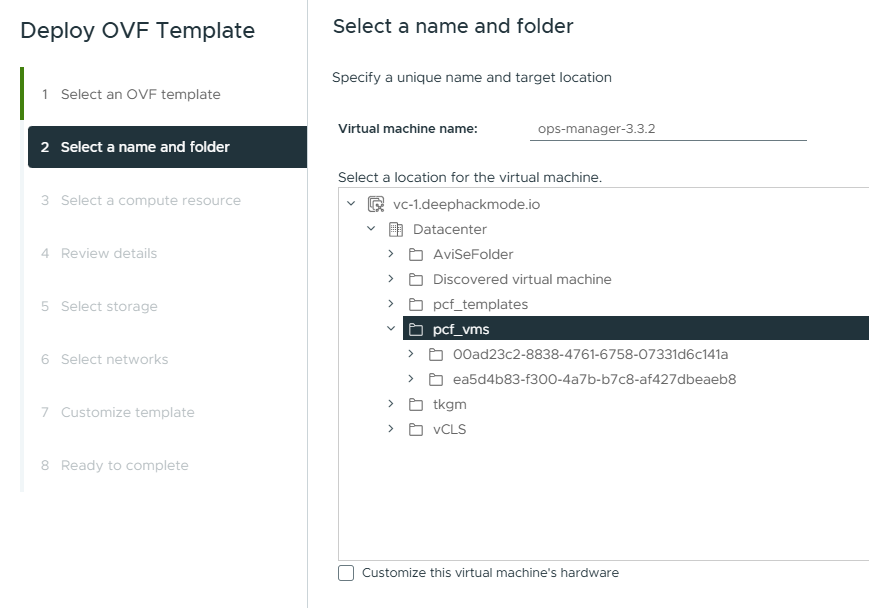
I entered name of the new VM as “ops-manager-3.3.2” accordingly, and selected the “pcf_vms” folder as location.
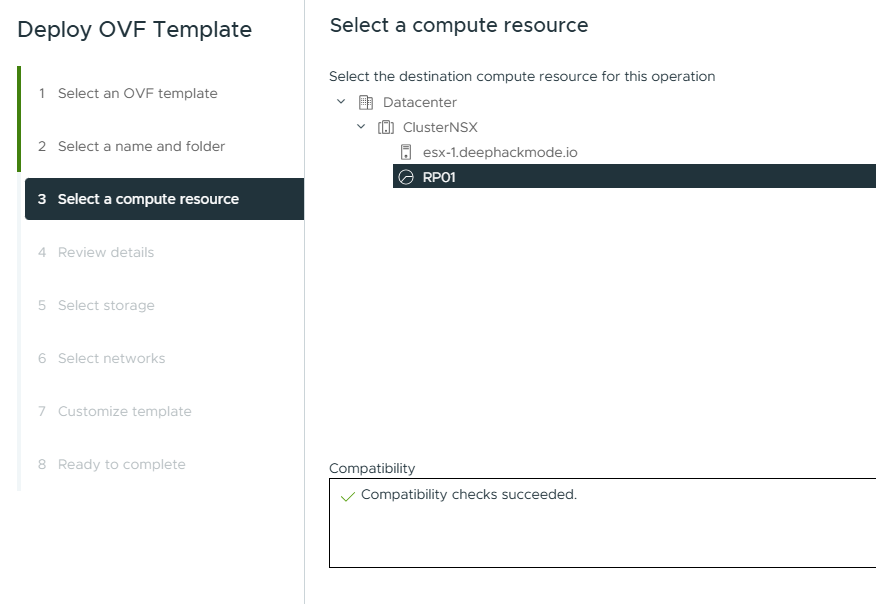
I selected the only resource pool “RP01” as destination compute resource.
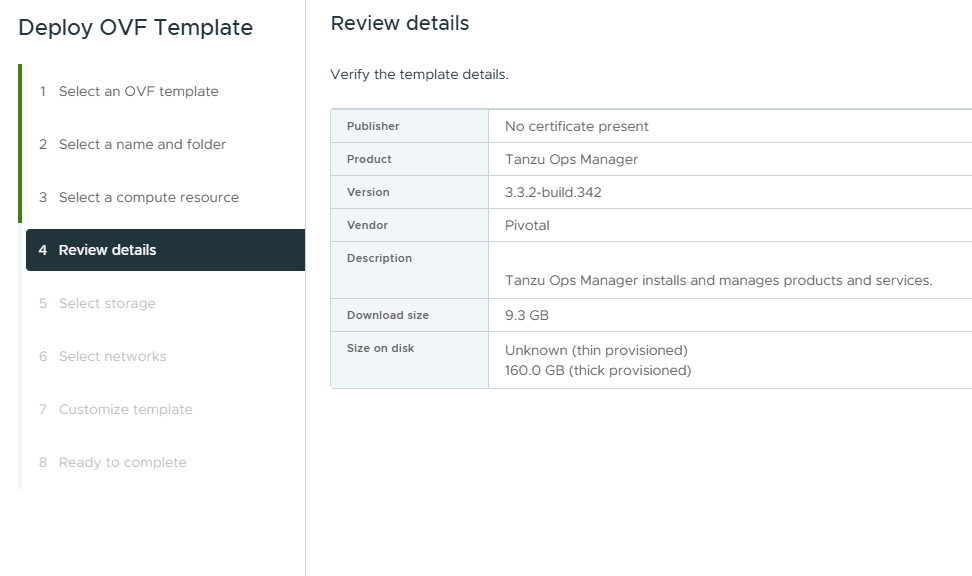
In Review Details, I confirmed that everything looks good so far and clicked Next.
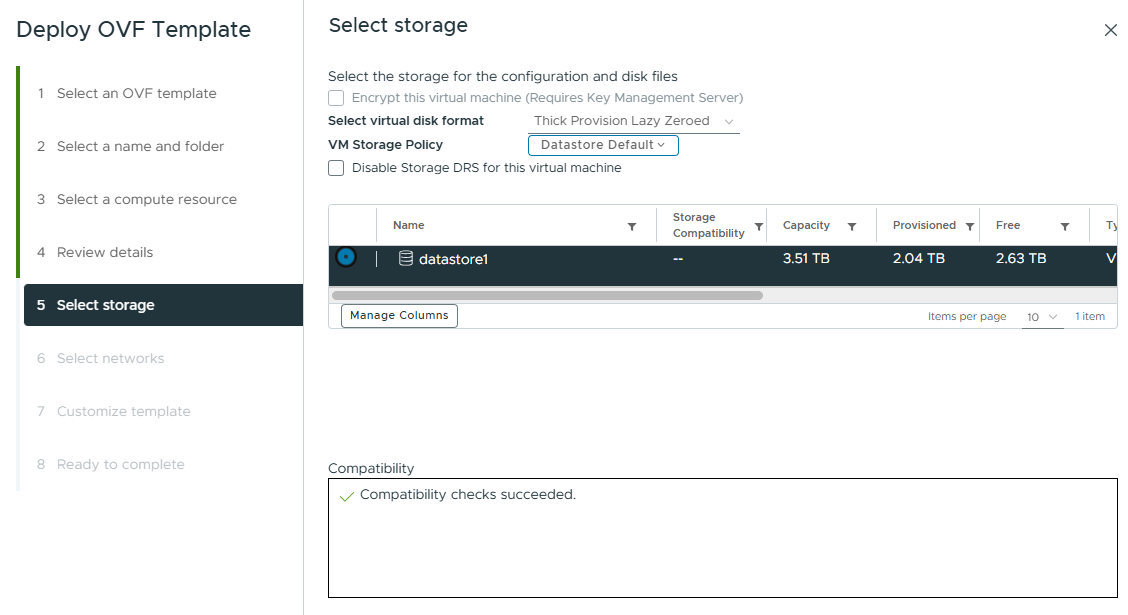
Selected the only datastore I have as the storage.
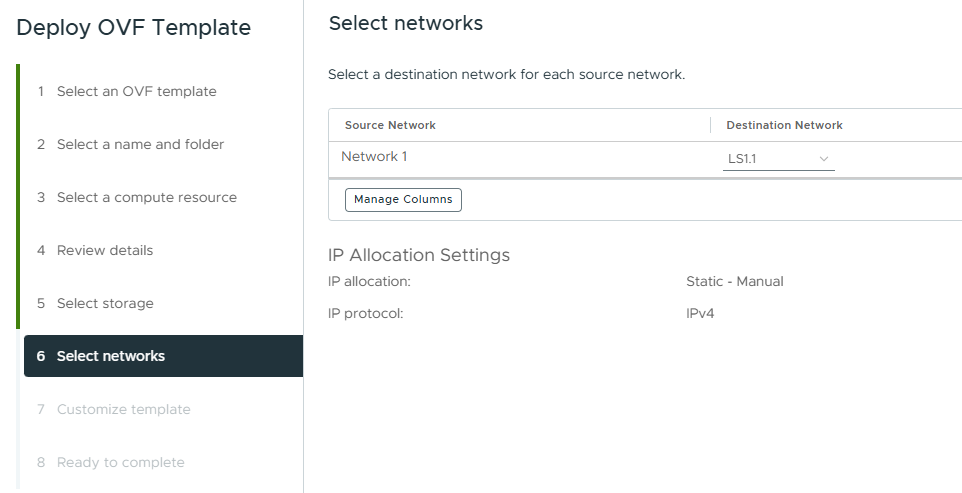
Selected “LS1.1” as the destination network. This is the same network set in the current Ops Manager VM.
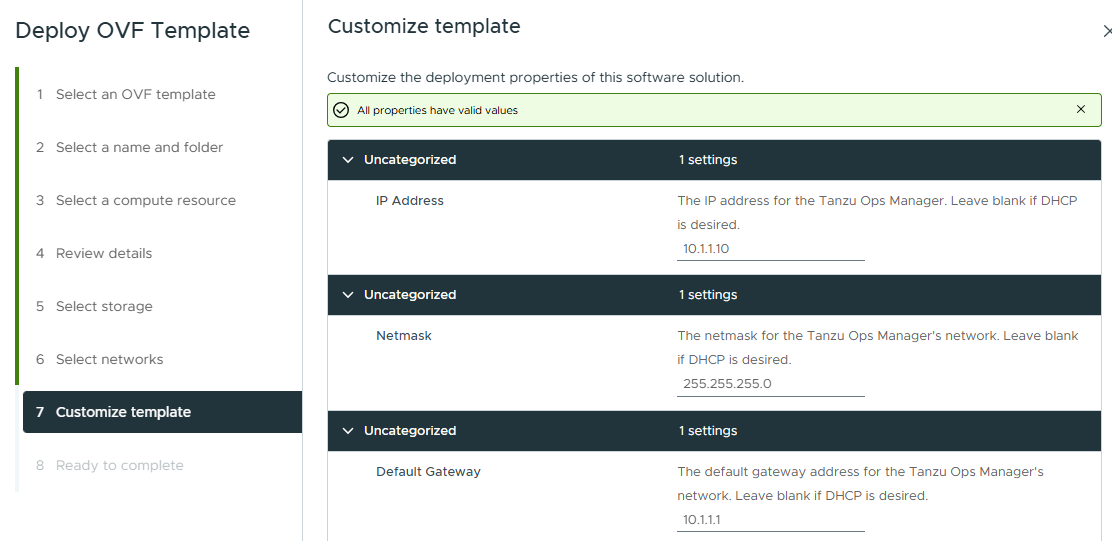
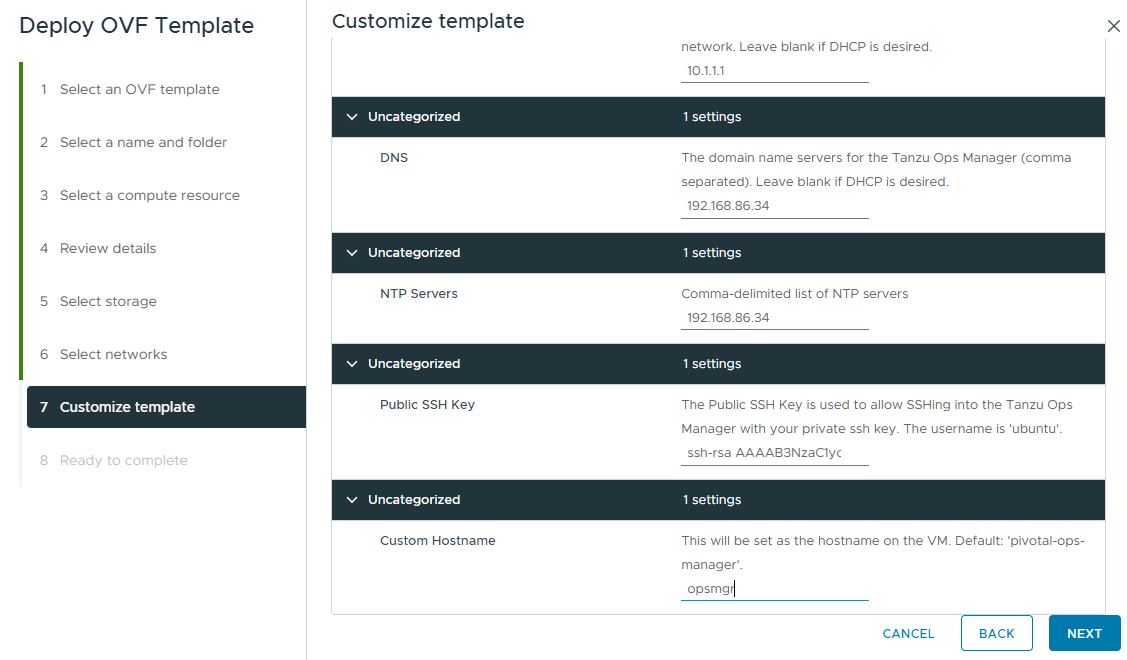
In Customize template page, I entered the same settings as the current Ops Manager VM.
In Ready to complete page, I verified all the details and then clicked “Finish”.
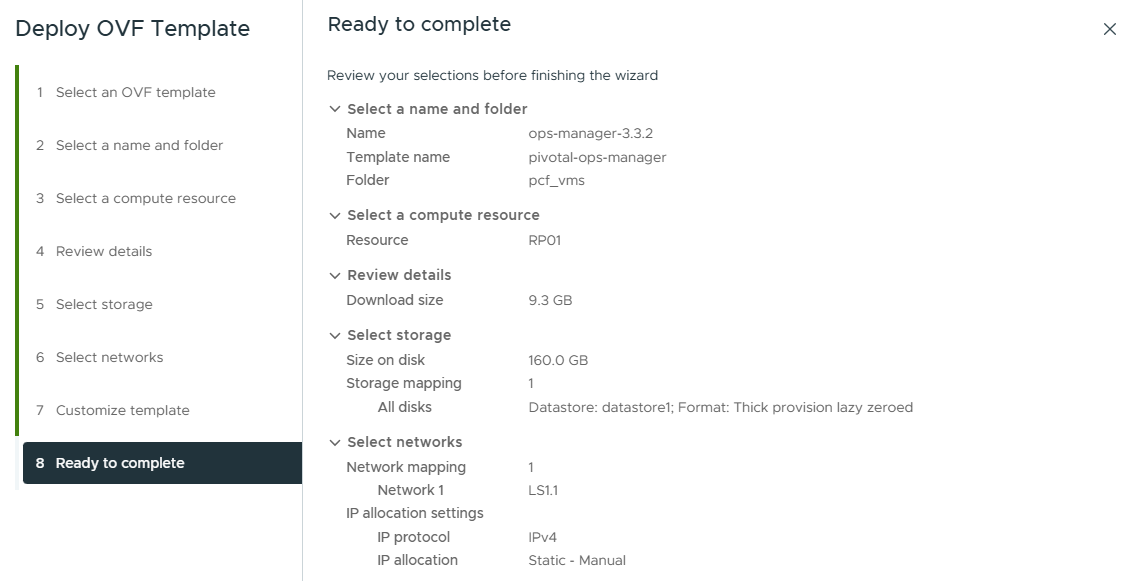
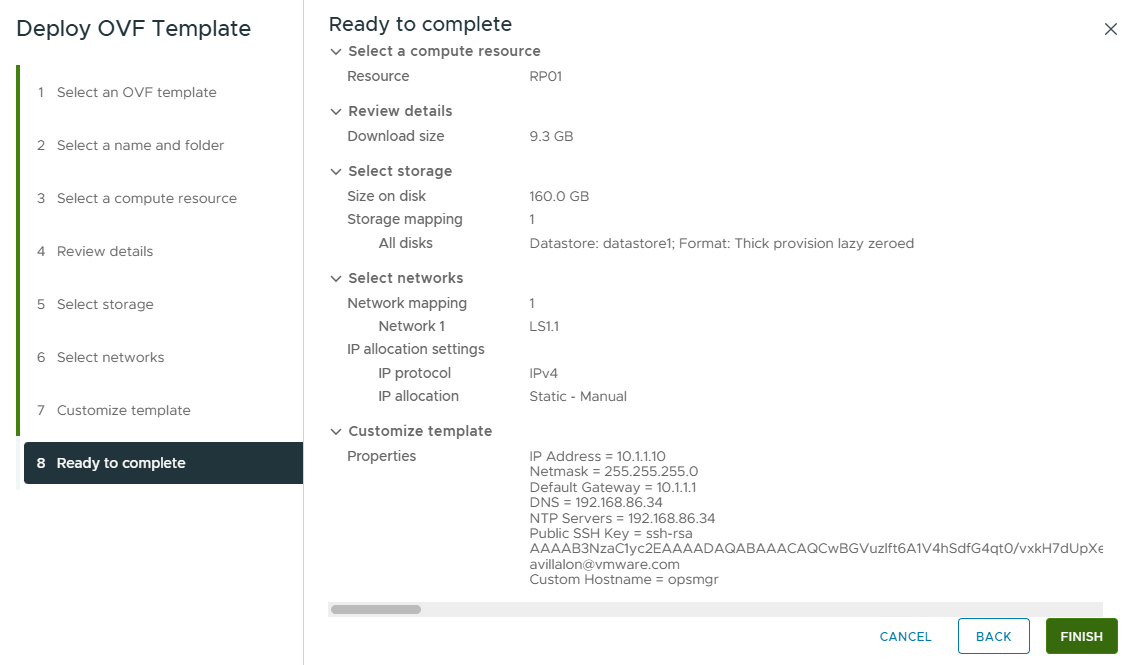
The OVA started deploying.
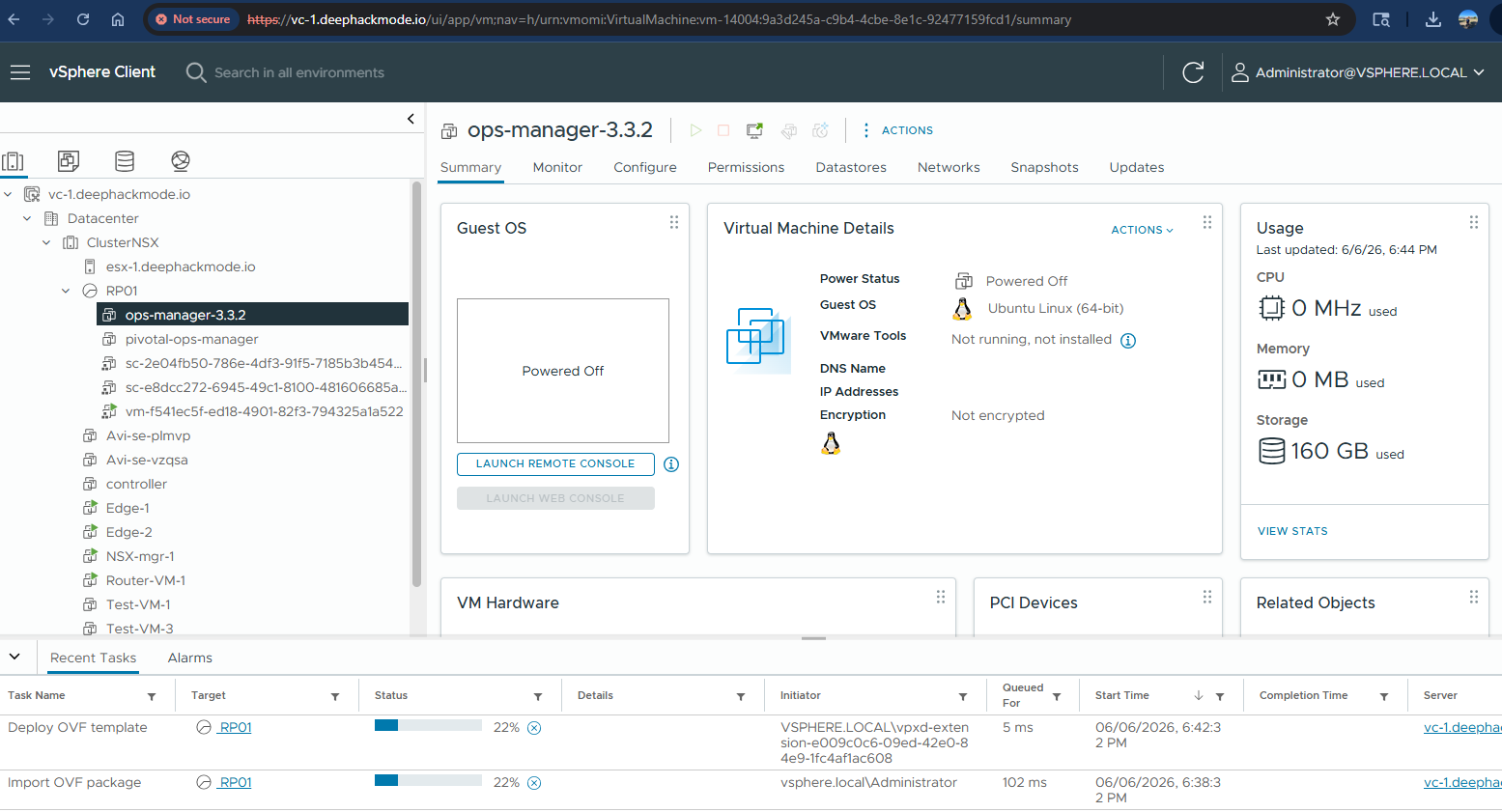
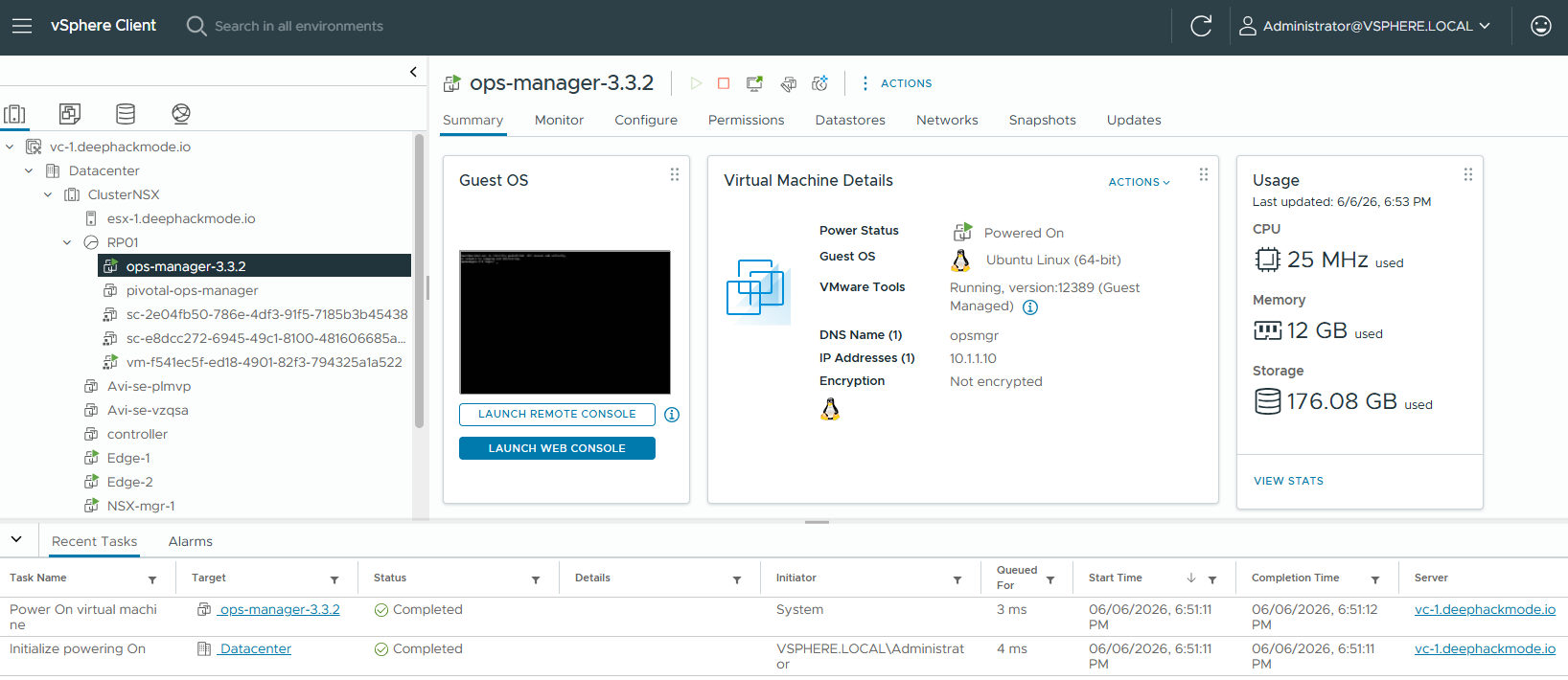
After around 8 minutes, the deployment completed!
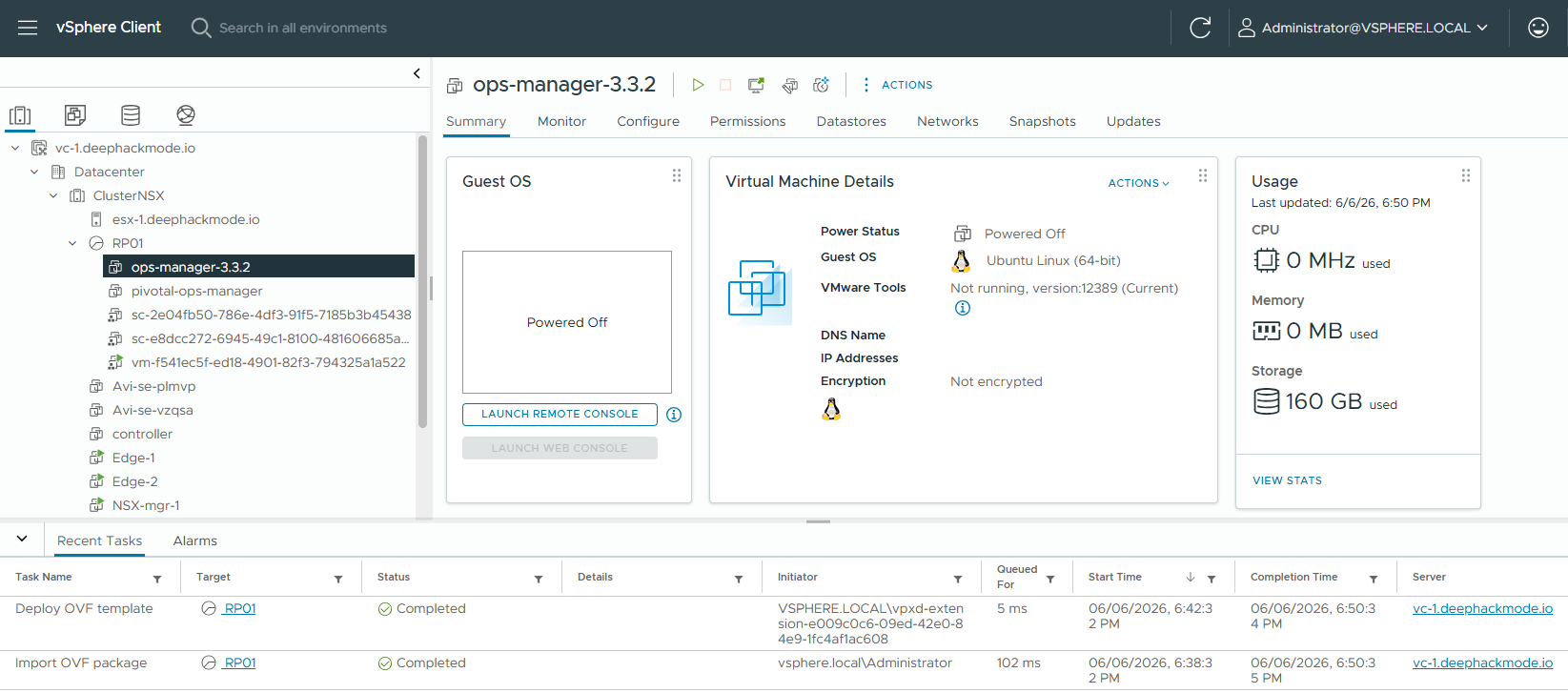
Powered on the new Ops Manager VM, and waited for it to get an IP address assigned.
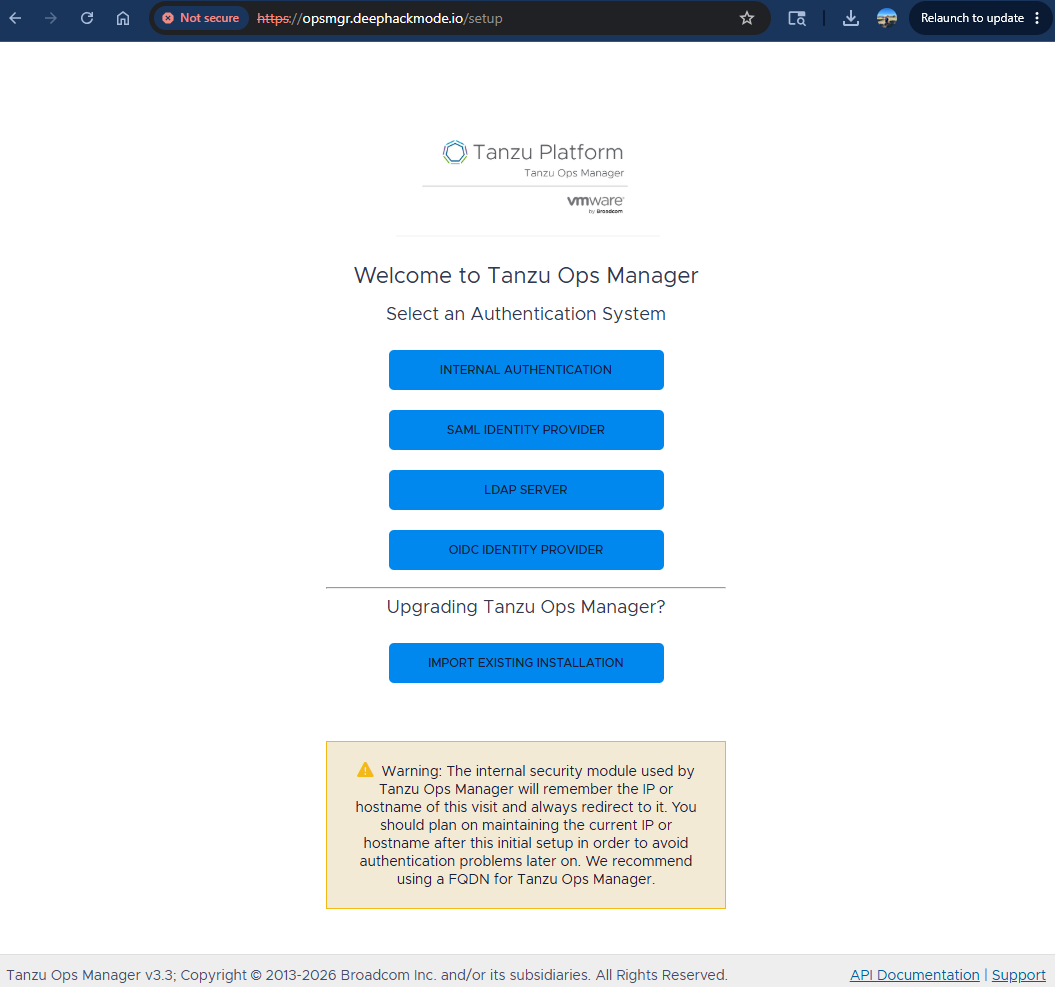
Navigated to the Ops Manager URL (https://opsmgr.deephackmode.io), and was greeted with a Welcome page.
Clicked “Import Existing Installation”, and uploaded the “installation.zip” file I saved earlier. Also, obviously I entered the Decryption Passphrase, which is a must.
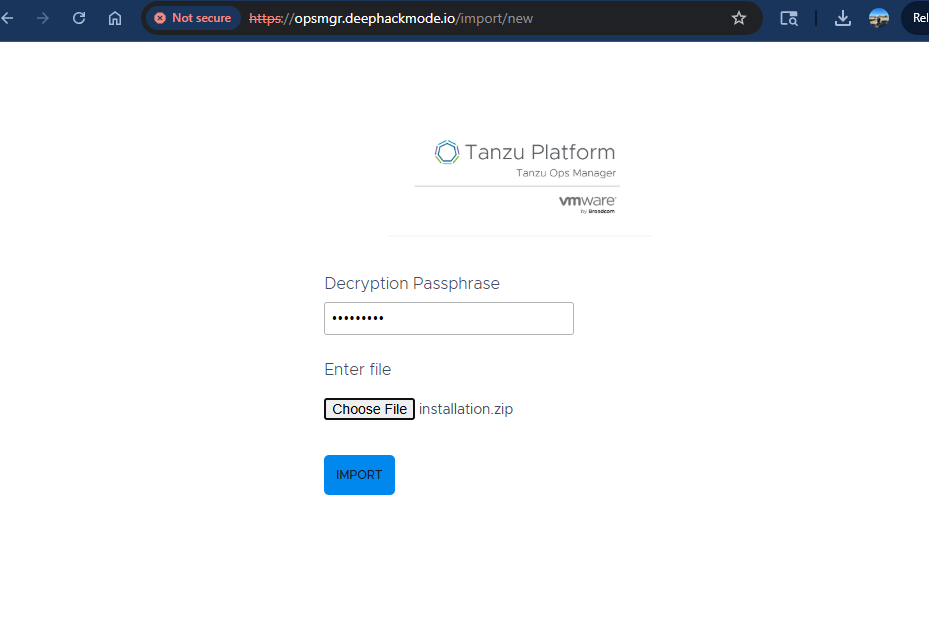
Clicked the “Import” button, and it started processing the file.
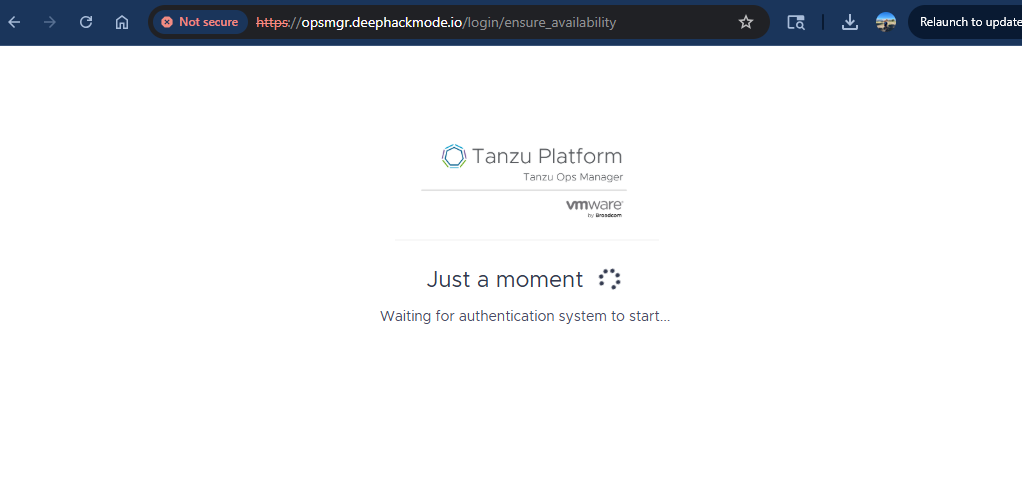
After a few seconds, the usual Login Page appeared.
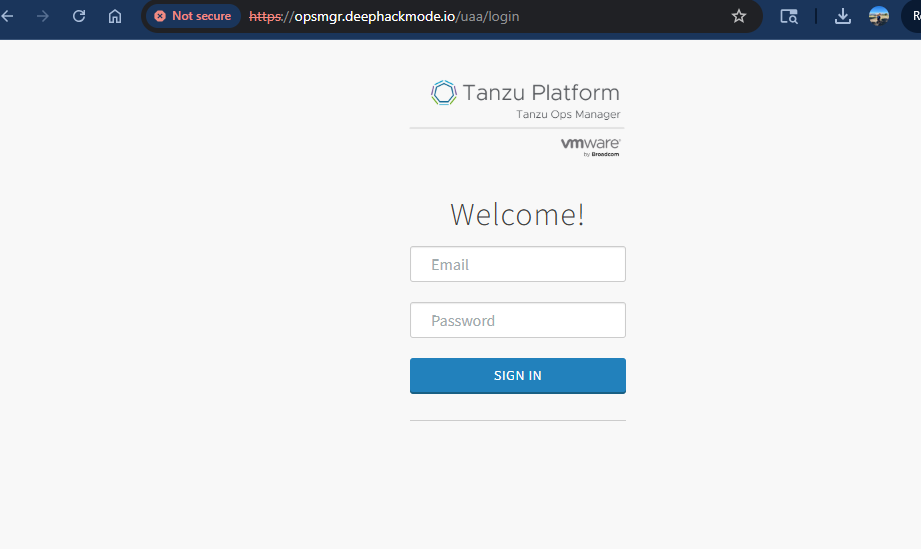
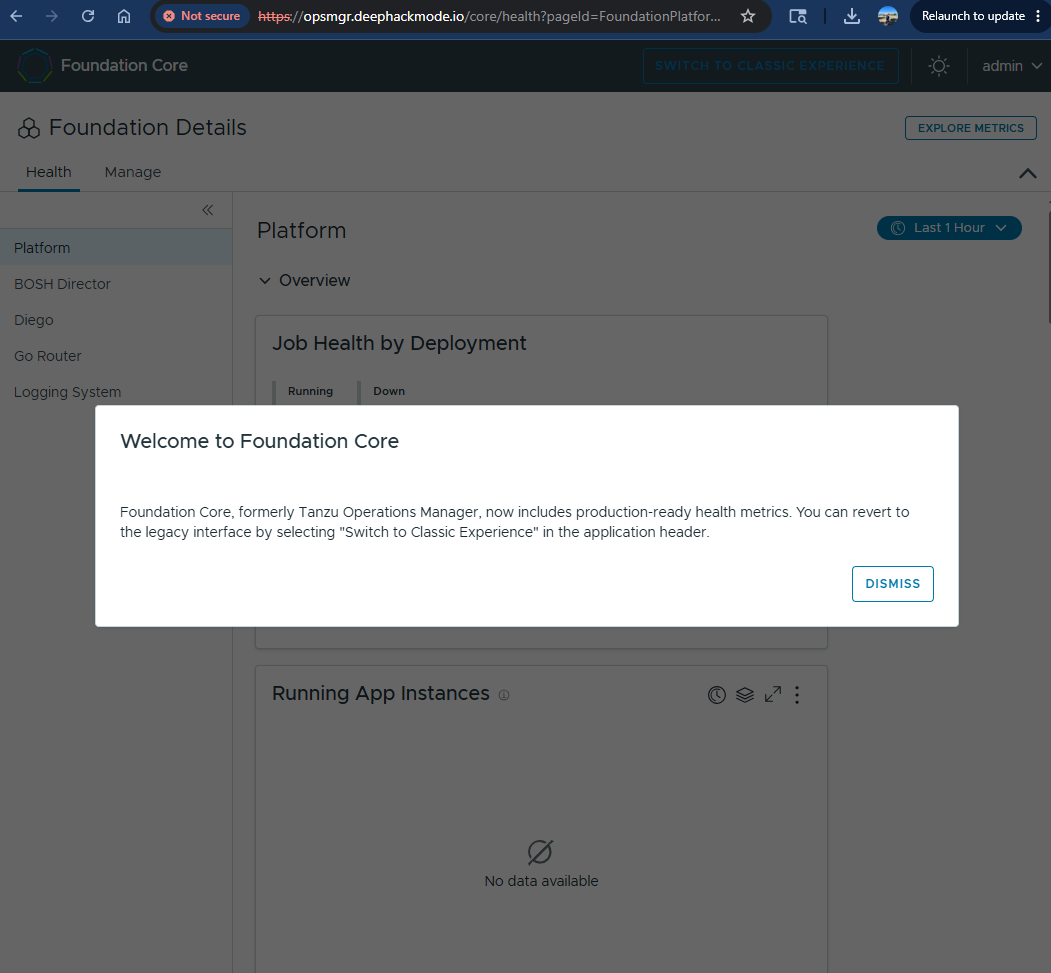
Logged in the with the ‘admin’ account and password, and then I was greeted with the new UI. Also, it is now named “Foundation Core”!
Navigated to “Manage” tab and then to the “Capabilities” page, which shows the current tiles that are installed.
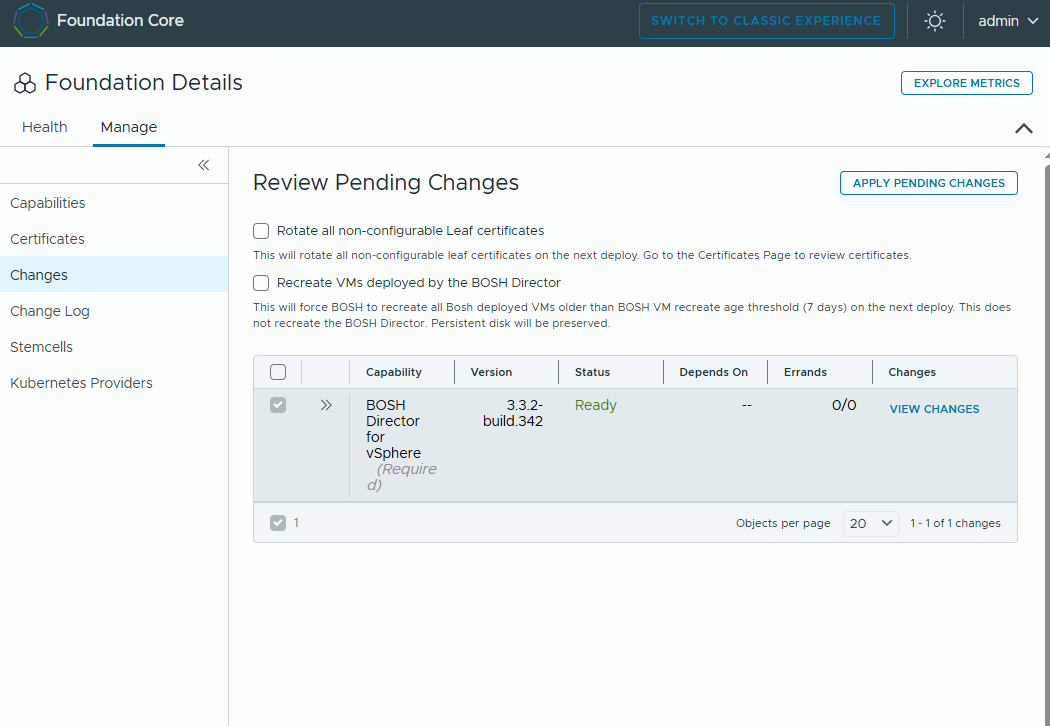
Clicked on “Changes” tab, and clicked on “Apply Pending Changes” to deploy the new Bosh Director version.
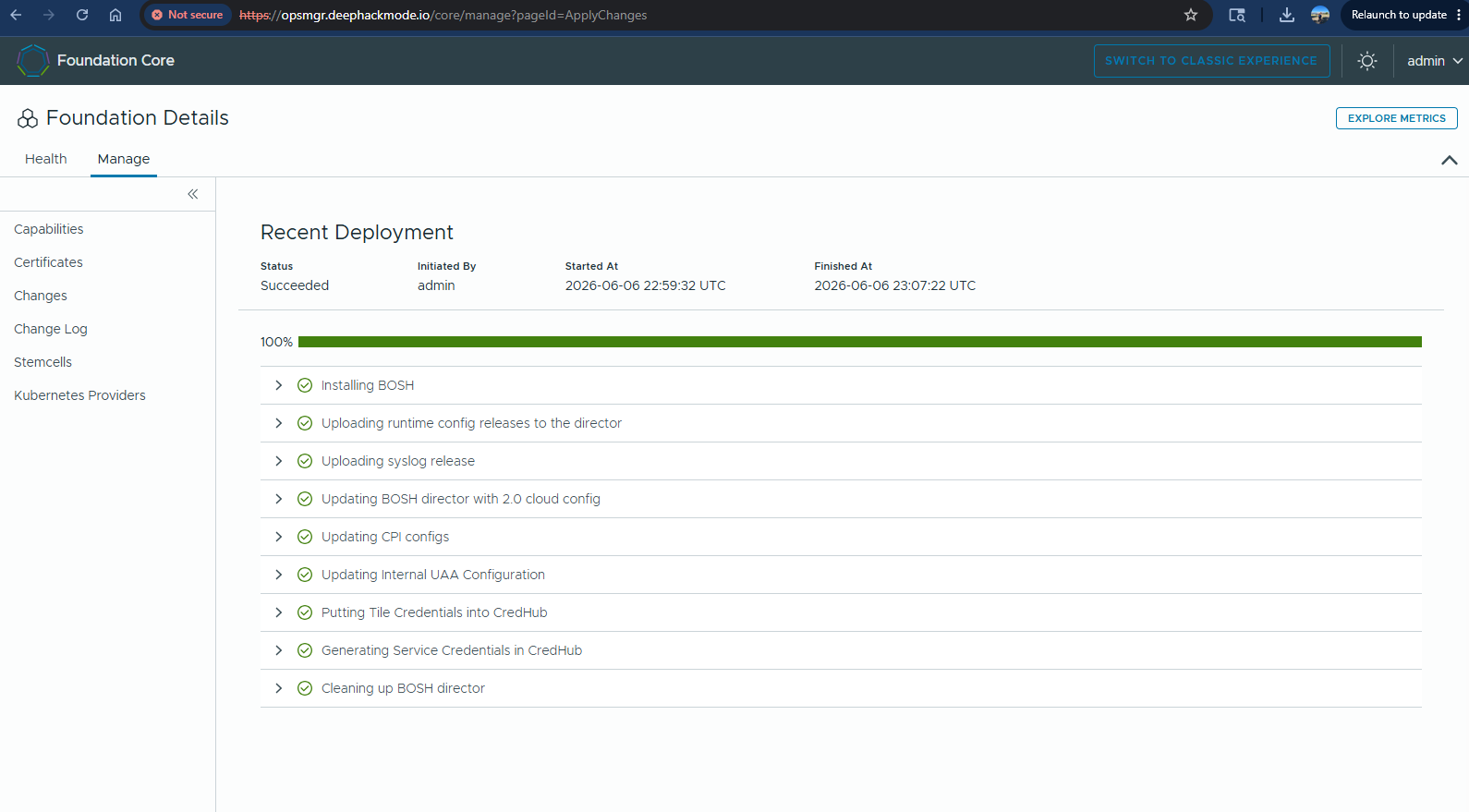
Apply Changes running.
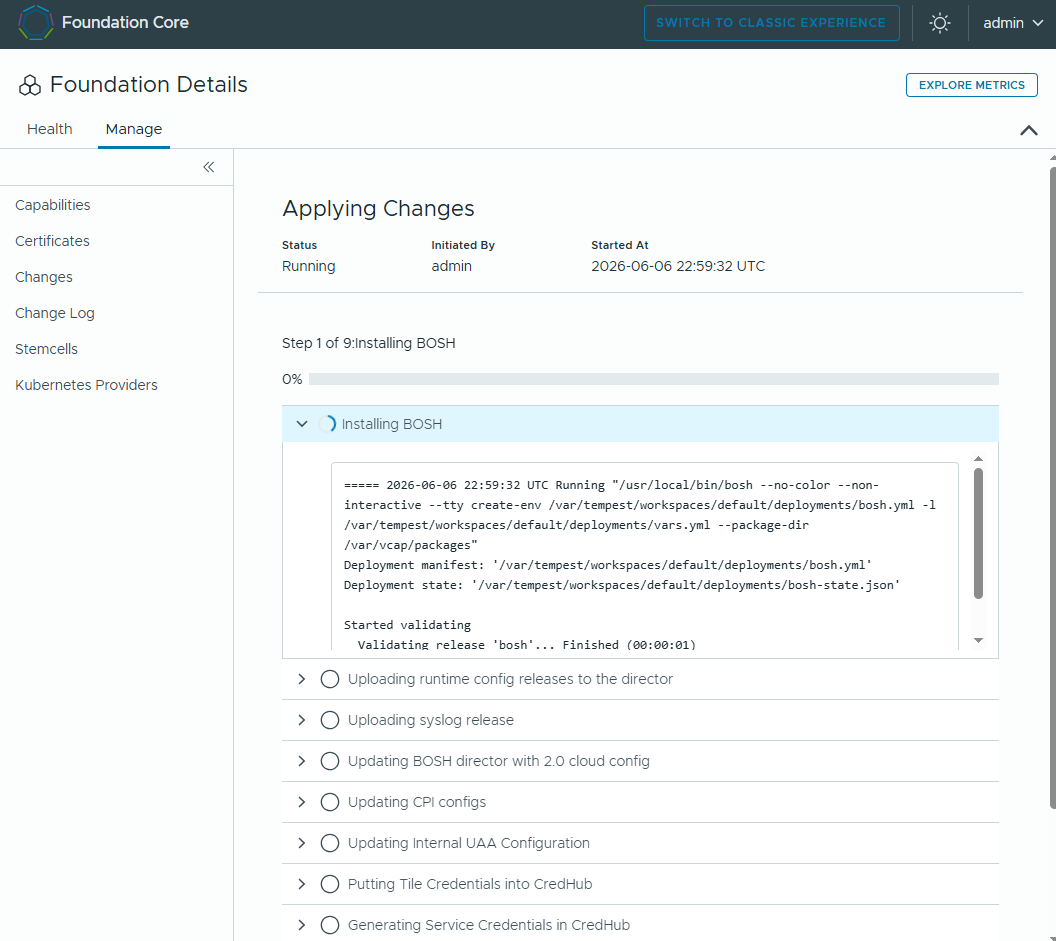
It completed in around 8 minutes!